Showing posts with label ipod. Show all posts

Sunday, October 13, 2013

4 3 3 iOS Jailbreak iPhone 4 3GS iPod Touch 4G 3G iPad Untethered

PwnageTool 4.3.
iPhone Dev Team
has just released PwnageTool 4.3.3 to bring untethered jailbreak for iOS 4.3.3 to iPhone 4,iPhone 3GS, iPod Touch 4G, iPod touch 3G, iPad 1 and AppleTV. PwnageTool 4.3.3 allow who rely on unlock to keep their old unlockable baseband on iOS 4.3.3 so that they can use ultrasn0w to unlock their devices.


Supported devices:
  • iPhone 4, 3GS
  • iPod Touch 4G, 3G
  • iPad 1 (Unfortunately iPad 2 still not supported)
  • Apple TV 2G.
Downloads:
Step 1: Run PwnageTool in “Expert mode” and then select the device you want to jailbreak.


Click here to enlarge
Step 2: Browse for iOS 4.3.3 IPSW firmware for your device.
Click here to enlarge
Step 3: Click on“Build” -as shown in the below screenshot- to start creating custom 4.3.3 firmware file
Click here to enlarge
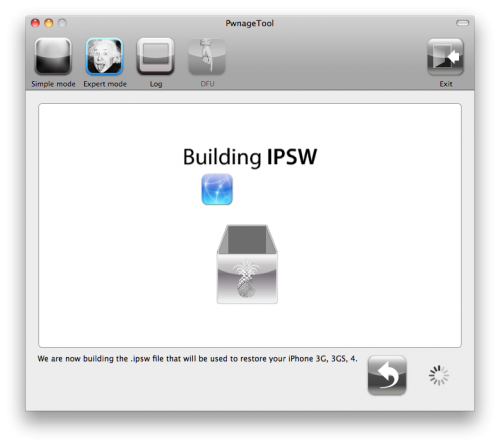
Step 4: PwnageTool will now start building your custom 4.3.3 .ipsw file for your device
Click here to enlarge
Step 5: Now follow the following steps to enter DFU mode using PwnageTool:
  • Hold Power and Home buttons for 10 seconds
  • Now release the Power button but continue holding the Home button for 10 more seconds
  • You device should now be in DFU mode
Click here to enlarge

Step 5: Now restore your device to your pre-jailbroken custom 4.3.3 .ipsw files by doing this:
  • Start iTunes.
  • Click on your device icon from the sidebar in iTunes.
  • Press and hold left “alt” (option) button on Mac, or Left “Shift” button if you are on Windows on the keyboard and then click on “Restore” button in the iTunes and then release this button.


Click here to enlarge
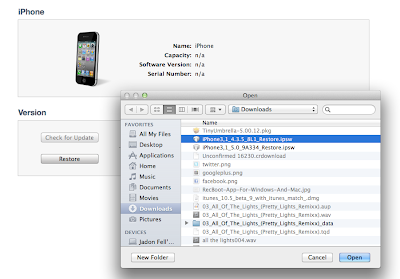
Now iTunes asking you to select the location for your custom firmware 4.3.3 file. Select the pre-jailbroken custom 4.3.3 firmware .ipsw file, then click on “Open”.


Step 9: iTunes will now restore the firmware on your iOS device. (this will take 10 minutes) then enjoy your untethered jailbreak on iOS 4.3.3
Read more...

Saturday, October 12, 2013

How to Fix Disappearing iPhone iPod Library Bug in iOS 4 2


Some iPhone, iPad, and iPod touch users who updated to the recently released iOS 4.2 have been experiencing issues with their iPod music library disappearing after the update is complete.
If when opening your iPod.app you find your library has disappeared, to do not fret. It hasn’t been deleted, it simply isn’t being seen by the iPod app due to a bug in iOS 4.2. The good news is there appears to be a simple fix:
1.Connect your iOS device to your Mac or PC and open iTunes
2. Select your device from the left column
3. Underneath your device in the left column, select ‘music” and play a song
4. Hit ‘Sync’ in iTunes to re-sync your music library
5. Open iPod.app on your iOS device and wait a moment while your library is repopulated.
Read more...

Tuesday, October 8, 2013

iOS 4 3 4 Firmware IPSW Download iPhone 4 3GS iPad 1 2 iPod touch 4G 3G Direct Links

As we expected, Apple has just released iOS 4.3.4 ipsw firmware for iPhone, iPod touch, iPad and Apple TV mainly to patch the security hole that found by Comex in JailbreakMe.


Direct Download Links for iOS 4.3.4 (Official from Apple) :
Read more...

Sunday, October 6, 2013

Jailbreak 4 3 5 iPhone 4 3GS iPod Touch 4G 3G iPad with Redsn0w

As you know that Apple has released iOS 4.3.5 to fix security issue. The good news is that some guys have confirmed that current Redsn0w version can jailbreak 4.3.5 iPhone 4, 3GS, iPod Touch 4G, 3G, iPad 1.

As we reported you that this jailbreak is still tethered jailbreak which means that you will need to reconnect your iDevice with computer every time your reboot iDevice.

[h=2]Jailbreak 4.3.5 iPhone 4, 3GS, iPod Touch 4G, 3G, iPad:[/h]
Step 1: Download iOS 4.3.5 and iOS 4.3.4 (required by this version of Redsn0w) firmware file for your device from the links given at the end.

Step 2: Download Redsn0w 0.9.8b4 for Windows or Mac. Also make sure you are running the latest version of iTunes, which is version 10.4.

Step 3: Now start Redsn0w, browse for the iOS 4.3.4 firmware file (NOT the 4.3.5) that you downloaded in Step 1 and point it towards Redsn0w. Refer to the screenshots below:

Click here to enlarge

Step 4: Once Redsn0w is done recognizing the firmware file, click Next and there you’ll be taken to a new window. Simply check the “Install Cydia” box as shown below and leave other options as it is for now. Once done, click Next.
Click here to enlarge

Step 5: On this screen, Redsn0w will instruct you to power down your device and plug it in to your computer. Follow the onscreen instructions and then click Next to continue.
Click here to enlarge

Step 6: On this screen you will have to put your device in DFU mode with a combination of the Power button and the Home button for a certain amount of time, simply follow the onscreen instructions on how to do so. The combination is usually like this:
  • Hold down Power button for 5 seconds.
  • Now without releasing the Power button, hold down the Home button simultaneously with the Power button for 10 seconds.
  • Let go of the Power button but keep on holding the Home button for another 15 seconds.
If you performed the above mentioned steps correctly, then your device should be in DFU mode.
Click here to enlarge

Step 7: Redsn0w will now jailbreak your device, don’t do anything weird at this point, just let Redsn0w finish. We would recommend that you don’t do anything with your PC or Mac at all during the process. Sitting idle and waiting for the process to end on its own is much advised.

Since this is a tethered jailbreak, therefore whenever your iOS device loses power, it will go into the dreaded Apple logo boot screen loop. To get out of that, simply start from Step 3 again and in Step 4, uncheck “Install Cydia” and instead check “Just boot tethered right now” option and hit “Next” with your iPhone, iPad or iPod touch connected to your PC or Mac. And yes, you will have to do this every time when your device reboots or loses power.
Click here to enlarge

That’s it! You should now have a jailbroken iPhone, iPad, or iPod touch running iOS 4.3.5.
Read more...

Saturday, October 5, 2013

Jailbreak iOS 4 3 1 Untethered with Redsn0w 0 9 6rc9 for iPhone iPod Touch iPad How to Guide

Few minutes ago Dev-Team has released iOS 4.3.1 untethered jailbreak for both Redsn0w 0.9.6rc9 and PwnageTool 4.3, the jailbreak support all iOS devices except iPad 2


NOTE: Users who rely on ultrasn0w unlock MUST stay away from Redsn0w.

Step 1: Download iOS 4.3.1 for your device (download links at the end)
Step 2: Update/Restore to iOS 4.3.1 firmware using the IPSW file via iTunes 10.2.1.
Step 3: Start Redsn0w and point it to the official iOS 4.3.1 firmware file.


Step 4: Now simply select “Install Cydia” and click “Next”.
Step 5: Now make sure your device is both OFF and PLUGGED IN to the computer before you click “Next”.
 
At this stage you will be presented with a screen where you will be guided on how to enter DFU mode. Quickly hold “Power” button and then while holding the “Power” button, you will now have to hold “Home” button too. Now after few seconds release “Power” button but keep holding “Home” button until installation begins.


Step 6: Wait shortly. Once done, your iPhone, iPad or iPod touch will restart automatically and you will find it fully jailbroken (untethered) on the latest iOS 4.3.1 firmware.

Download Redsn0w 0.9.6rc9 (Windows)
Download Redsn0w 0.9.6rc9 (Mac)
Download iOS 4.3.1 for iPhone, iPad and iPod touch
Download iTunes 10.2.1 for Windows / Mac OS X
Read more...

Friday, October 4, 2013

iOS 5 Beta 1 IPSW Download iPhone iPod Touch iPad Direct Links No Devoloper ID

The guys over Jailbreakzone uploaded all iOS 5 firmware ipsw files for iPhone 4, iPhone 3GS, iPod touch 4G, iPod touch 3G, iPad 1, iPad 2 and Apple TV 2G.


Important notes:
  • Please note that this is iOS 5 beta 1 for SDK, and no there is no jailbreak available for iOS 5 so far.
  • Your device will need to be activated, you can activate your device by going to iOS Activations for that. Install a beta on a non-activated device will render it useless.


Apple TV 2G (4.4, 303.55MB)


iPad 1G (669.66MB)


iPad 2 (WiFi, 677.89MB)

iPad 2 (GSM, 685.17MB)

iPad 2 (CDMA, 691.77MB)

iPhone 3GS (609.2MB)

iPhone 4 (GSM, 730.2MB)


iPhone 4 (CDMA, 744.01MB)


iPod Touch 3G (578.16MB)


iPod Touch 4G (717.74MB)


iTunes 10.5 (Mac OS X, 71.55MB)


iTunes 10.5 (Windows x86/32-bit, 72.48MB)


iTunes 10.5 (Windows x64(64-bit, 74.07MB)


------ Guide: How To Install iOS 5 -------

Cant wait for iOS 5 release this fall and you dont have a developer account? We have good news, you can get your hands dirty now thanks to the powers of the internet. You can now install iOS 5 on your iOS device without need to a developer account, yes you wont need it.

Click here to enlarge


Guide:
STEP 1: Install iTunes 10.5 beta from direct link here. [Mac - Windows 32 bit - Windows 64 bit]

STEP 2: Now you need to download the right firmware file for your iOS device:
STEP 3: Now open iTunes that you downloaded above and restore using your firmware.
you need to activate with original simcard .

Warning: Only Factory Unlock Phone ( Jailbreak & Unltrasn0w Unlocker Stay Away )

Upgrade to iOS 5 - iPhone 4, 3GS, iPod touch 4G, 3G, iPad 1, 2 - Without a Developer Account!
Its been less than 2 days and iOS5 is already cracked! Non developers can now install the iOS 5 beta on their iPhones.

Click here to enlarge

This backdoor uses a security exploit in the activation screen.
How to upgrade to iOS 5 for iPhone 4,3GS ,iPod touch 4G, 3G and iPad 1, 2:

Step 1: Download the iOS 5 IPSW file for iPhone 4 and iTunes 10.5 - 
Step 2: Install iTunes from the downloaded DMG file.
Step 3: Update your phone with itunes by connecting it and clicking on the "Check for Update" button while holding down the Option key (Shift on a PC). Select the iOS5 IPSW you just downloaded and confirm.

How to Activate iOS 5 without developer account

Step 1: Triple click the home button to activate Voice Over
Step 2: Triple click the home button and Emergency Call will appear.
Step 3: Click on Emergency Call and, while its switching, swipe with your three fingers down.
Step 4: The Notification Center will appear!
Step 5: Click on the Weather widget and wait for the weather app to load.
Step 6: Click on the home button to exit to the iPhones springboard.

There you go! Your iPhone is now running iOS 5.
Read more...

How to install a game from PC to iPhone iPod iPad

Installation guide: (when you downloading files to your PC)

1. Download the ipa game file.
2. Install the game.

How to install the game on the iPhone, iPod, iPad

Requirements:
Internet connection (Wi-Fi, 3G, GPRS)
Jailbreaked device
Account in the App Store

Installed ITunes on your PC

Necessary steps to prepare your device:
1. Open Cydia
2. Go to Manage > Sources > Edit > Add > http://cydia.hackulo.us > Add Source (on iPad: Sources > Edit > Add)
3. Then go to Sections > Hackulo.us
4. Select AppSync for 5.x+ (or OS 3.x+, or 4.x+ depending on your firmware)
5. Click Install > Confirm
6. Reboot your device

Necessary steps to install the game:
1. Download any game to your computer.
2. Double click it and it appears in iTunes > iTunes Software
3. Go to your device via iTunes > iPhone > Programs and check the game/app (or make sure that it is already checked)
4. Click Synchronize
Read more...

Thursday, October 3, 2013

Upgrade to iOS 5 iPhone 4 3GS iPod touch 4G 3G iPad 1 2 Without a Developer Account!

Its been less than 2 days and iOS5 is already cracked! Non developers can now install the iOS 5 beta on their iPhones.

Click here to enlarge

This backdoor uses a security exploit in the activation screen.
How to upgrade to iOS 5 for iPhone 4,3GS ,iPod touch 4G, 3G and iPad 1, 2:

Step 1: Download the iOS 5 IPSW file for iPhone 4 and iTunes 10.5 -  Click Here.
Step 2: Install iTunes from the downloaded DMG file.
Step 3: Update your phone with itunes by connecting it and clicking on the "Check for Update" button while holding down the Option key (Shift on a PC). Select the iOS5 IPSW you just downloaded and confirm.

How to Activate iOS 5 without developer account

Step 1: Triple click the home button to activate Voice Over
Step 2: Triple click the home button and Emergency Call will appear.
Step 3: Click on Emergency Call and, while its switching, swipe with your three fingers down.
Step 4: The Notification Center will appear!
Step 5: Click on the Weather widget and wait for the weather app to load.
Step 6: Click on the home button to exit to the iPhones springboard.

There you go! Your iPhone is now running iOS 5.
Update:
You have to go throught the setup and get to the screen that says "Servers Not available, please try again later" or something like that and then do the tripple home click procedure.

play safe and Save SHSH Blobs of Your Current Firmware Using iFaith

Like in all IOS updates
Warning: Only Factory Unlock Phone ( Jailbreak & Unltrasn0w Unlocker Stay Away )
Until someone has the balls to test...


Video


Before we even start, obviously this is something that isn’t covered by warranty and may destroy your phone.  Once you go to iOS 5, you cant go back. APPLE WILL LIKELY FIX THIS IN AN UPCOMING iOS 5 UPDATE AND YOU WON’T BE ABLE TO USE YOUR DEVICE (until iOS 5 final is released or a developer adds your phone to his or her device list).

Gizmodo see a video on how to activate an iPhone on iOS without having your device ID provisioned by a developer/Apple.  The exploit uses a combination of Voiceover and the pull down notifications to activate the phone.  The user that found this exploit says the device continues to work after restarts (so you won’t need to activate it every time you restart).
Read more...

Sunday, September 29, 2013

Jailbreak iOS 5 beta 3 iPhone iPod Touch iPad Redsn0w Caution

Jailbreak iOS 5 beta 3 - iPhone, iPod Touch, iPad - Redsn0w

Today the new Beta version of iOS 5 has been released named as iOS5 Beta 3. now there is need for most of the users of this new version of firmware to jailbreak their devices. There is good news for those that they can easily jailbreak the latest version of iOS 5 beta 3. There is no tool updated for the jailbreak, but the last version of Redsn0w that was released to jailbreak iOS 5 Beta 2 can jailbreak iOS Beta 3 as well. But this new version and jailbreak is only for developers. Here is the announcement made by MuscleNerd about the jailbreaking of new firmware.
Click here to enlarge
This jailbreak method is same as was in the past for Redsn0w by putting the device in DFU mode, but remember this jailbreak is also tethered.

Here is a bit guide about jailbreaking new version iOS 5 Beta 3. first update you iDevice with this latest firmware via iTunes. Then you need to run Redsn0w 0.9.8 and select the firmware iOS 5.0 beta1. if you select other firmware then you will not be able to jailbreak your device running iOS Beta3.

Click here to enlarge

Again this is tethered jailbreak, it means that every time you switch off your device, you will have to connect it to your PC and use the option “Just boot tethered right now” to use your device.
iOS 5 Beta 3 Can Be Jailbroken Using Redsn0w 0.9.8b1; But App Store Apps Are Not Working
Click here to enlarge
iOS 5 beta 3 that has just been seeded to developers of iOS developer program can be jailbroken using Redsn0w 0.9.8b1.iPhone Dev team had released Redsn0w 0.9.8b1 for Mac and Windows for iOS beta 1 for developers of jailbreak app developers so that they can test and debug their jailbreak apps and tweaks on iOS 5.


After upgrading your iOS device to iOS 5 beta, the trick is to point Redsn0w 0.9.8b1 to iOS 5 beta 1 firmware file to jailbreak it.MuscleNerd of the iPhone Dev Team has also confirmed this on Twitter:
Todays 5.0b3 can be jailbroken with last months redsn0w http://is.gd/6eek4Y (point it at 5.0b1 IPSW..devs only please!)
But please proceed with caution if you’re not a jailbreak app developer as we’re hearing reports that App Store apps do not working after jailbreaking iOS 5 beta 3. ModMyI reports:
After playing around on iOS 5 beta 3 while jailbroken, it has been discovered that AppStore applications do not work. They crash and refuse to open. It is an issue that has been reported by a few people, including myself.
According to hacker, Clayton Braasch it is due to a sandboxing issue:
To reiterate: theres a sandbox issue causing App Store apps to crash after jailbreaking iOS 5 beta 3. Stay away if youre not a developer.
It needs to be seen if this is due to some anti-jailbreaking measure introduced by Apple in the latest iOS 5 beta.
Read more...

Friday, September 27, 2013

Jailbreak 4 3 3 iPhone 4 3GS iPod Touch 4G 3G iPad Video Guide

Well guys, now you can jailbreak the newly iOS 4.3.3 using the current version of Redsn0w 0.9.6, jailbreak iOS 4.3.3 with Redsn0w still tethered (you will have to boot your iOS device in tethered state on every reboot) on iPhone 4, iPhhone 3GS, iPod touch 4G, iPod touch 3G and iPad.

 Heres How to jailbreak iPhone 4, 3GS, iPod touch 4G, 3G and iPad using Redsn0w :


Important Note: For who rely on unlock please stay away from iOS 4.3.3 update until ultrasn0w fixer or update release.

Download iOS 4.3.3 for iPhone 4, 3GS, iPod touch iPad,
Download iOS 4.3.2 for iPhone 4, 3GS, iPad, iPod touch
Download Redsn0w 0.9.6rc14 for Windows
Download Redsn0w 0.9.6rc14 for Mac

View video VERY IMPORTANT need to point RedsnOw to frimware 4.3.2

======================
Jailbreak 4.3.3 Untethered - Redsn0w 0.9.6rc15 / PwnageTool 4.3.3 - Soon

Well, heres very good news for all our fans, Comex -the well known iPhone hacker- has just confirmed that i0n1cs untethered exploit used in iOS 4.3.2 / 4.3.1 jailbreak, didnt fixed in iOS 4.3.3 as exactly I told you couple of days ago.

Click here to enlarge
Definitely, iOS 4.3.3 untethered jailbreak for iPhone 4, 3GS, iPod touch 4G, 3G and iPad will be available within few days until dev-team perform some updates. So we can expect to see Redsn0w 0.9.6rc15 and PwnageTool 4.3.3 to bring untethered jailbreak for the newly iOS 4.3.3.

Important notes: any one who relies on jailbreak or ultrasn0w unlock, should stay away from iOS 4.3.3 update until we get the official word. Dont forget to save your 4.3.2 / 4.2.7 SHSH blobs from Here iSHSHit or from Here TinyUmbrella.

iSHSHit (TinyUmbrella alternative) has been updated to version 1.0.7 to support saving SHSH blobs for the iOS 4.3.2 firmware. By saving your SHSH blobs, you will be able to downgrade from upcoming iOSes to iOS 4.3.2. For who dont know, iSHSHit can send your saved SHSH blobs via email. If you are looking for an alternative to TinyUmbrella then iSHSHit is for you. iSHSHit uses the Cydia on File service, so that your SHSH blobs will be saved on the Cydia servers.

Save 4.3.2 SHSH Blobs with iSHSHit


Click here to enlarge

iSHSHit is available in Cydia under the BigBoss repo for free. You will need to have a jailbroken iPhone to install this tweak.

Save 4.3.2 / 4.2.7 SHSH with TinyUmbrella 04.32.00 - iPhone / iPod Touch / iPad

Semaphore (aka Notcom), the developer behind TinyUmbrella, has pushed a new update from TinyUmbrella to version 4.32.00 to allow you to save iOS 4.3.2 on iPhone 4, 3GS, iPod touch 4G, 3G and iPad, also TinyUmbrella 4.32.00 allows you to save SHSH for Verizon iPhone 4 running iOS 4.2.7.


Click here to enlarge


As a reminder, to save your SHSH blobs, simply connect your iDevice via USB to your computer, launch TinyUmbrella, and click the “Save SHSH” button.

Download TinyUmbrella 4.32.00 for Mac
Download TinyUmbrella 4.32.00 for Windows
Read more...

Tuesday, September 24, 2013

Fix iTunes Error 21 when restore Custom IPSW iPhone iPod Touch iPad

How to Fix iTunes error 21 ? Well, error 21 is happening with users who are trying to jailbreak their iPhone 4, 3GS, iPod touch 4G, 3G or iPad using custom ipsw (per-jailbroken ipsw firmware) with PwnageTool or sn0wbreeze which are the only jailbreak tools that make custom ipsw.


Click here to enlarge
What does iTunes error 21 mean ?

When you found iTunes error 21, it means that you are attempting to restore custom ipsw in the recovery mode.

How to Fix iTunes error 21 ?

To fix iTunes error 21 on iPhone 4, 3GS, iPod Touch 4G, 3G or iPad you have to restore to custom ipsw when your device in the DFU mode (Device Firmware Upgrade).

Steps to put your device in DFU mode to Fix iTunes error 21:

Step 1: Connect your iPhone to your Mac/PC and press power button for few seconds. You will be asked to slide to power off. Slick it to power off your iPhone.
Step 2: Now Press and hold Home button and the Sleep/Wake button at the same time.
Click here to enlarge

Step 3: After 10 seconds release the Sleep/Wake button but keep holding the home button until iTunes pops up with a message telling you that it has detected an iPhone in recovery mode.
Click here to enlarge
Step 4: Once you are in DFU mode you wont see anything on you screen. It will be BLACK.

Now you have fixed iTunes error 21, go now and restore to custom ipsw firmware without errors Click here to enlarge
Read more...

Monday, September 23, 2013

Fix Error 1611 iPhone 4 3GS iPod touch 4G 3G iPad When Restore 4 3 5 to 4 3 3

Error 1611 is on of the common errors that faces users while restoring their iPhone 4, 3GS, iPod touch 4G, 3G, iPad. When you get error 1611, iTunes shows this message “The iPhone "your device name" could not be restored. An unknown error has occurred (error 1611)". Lets check out how to fix 1611 error after the jump.

How to Fix Error 1611 iPhone 4, 3GS, iPod touch 4G, 3G, iPad 2, 1 after restore 4.3.5 to 4.3.3 :

Error 1611 can be fixed by one of the following trials, so you have to try "method 1", if you still have error 1611 try "method 2" :

Method 1: Reboot your computer and change the USB port.

Method 2: check out the below video guide to fix 1611 error.


Read more...

Saturday, September 21, 2013

Transfer Files Between iPhone iPod Touch iPad OSX Windows and WP7 Using Birdscorp

How to transfer music, videos, photos between these devices (iPhone, iPod Touch, iPad, OSX, Windows and WP7). Well, Apple’s iDevices are no doubt the most popular in the market these days. Everybody is talking about the vast variety of iPhone apps and games available on the internet these days. But the fact that Windows is still the most used OS can be ignored. Almost everybody has a Windows based PC or device. These two types of devices are mostly incompatible when it comes to sharing content between them.


Click here to enlarge

Well to increase the compatibly Birdscorp has introduced an App by the name AirForshare for all the iOS devices which enables users to wirelessly share text, links and files between all the iOS and OSX devices that are connected to the same Wi-Fi networks. Its easy, its simple and its convenient for all the tech freaks.
Click here to enlarge

So now its possible to share files not only across Apple OS devices but also between windows computers and mobile devices. the process of sharing of these files follows a simple procedure in which the files are shared or uploaded to the free web based AirForShare server from where they can be downloaded directly by any user on the Wi-Fi LAN.

Click here to enlarge

This is an ideal completely free and easy to use service which is ad free. And allows sharing content between otherwise incompatible devices. however there are a few limitations like, the files can be no larger than 5MB, the files are kept on the server only for half an hour.

The app is available for download on the App Store for free. So what are you waiting for? Download the app and start sharing.
Read more...

Friday, September 20, 2013

Save iOS 4 3 5 SHSH iPhone iPad and iPod touch Blobs and Update iPhone 4 Baseband

TinyUmbrella for both Windows and Mac has been updated to version 5.00.07 to support save iOS 4.3.5 SHSH blobs for iPhone, iPod touch and iPad. This will help you to save SHSH certificates for iOS 4.3.5 as well as update iPhone 4 baseband. This is the first time updating iPhone 4 baseband functionality has been enabled in TinyUmbrella.
Click here to enlarge
The iPhone 4 baseband update option should only be used by those who know what they are doing. If you are on a software unlocked iPhone, you should definitely not play with this setting. Anyhow, before you do proceed, take notice of the following:
  1. First, the version you WANT to restore to and the version Apple is currently signing must BOTH have the same baseband. This is important or else the baseband update will not work and you will get a 10xx error and need to use fixrecovery. (Works for iPhone 4 - will not work for iPad 2)
  2. Second, you need to realize that checking the box WILL UPDATE YOUR BASEBAND.
You have to manually select update iPhone 4 baseband option whenever you start TinyUmbrella. It will never be on by default.

As a reminder, to save your SHSH blobs, simply connect your iDevice via USB to your computer, launch TinyUmbrella, and click the “Save SHSH” button.

Download TinyUmbrella v5.00.07 for Windows
Download TinyUmbrella v5.00.07 for Mac
Read more...

Wednesday, September 18, 2013

HOW TO Jailbreak Your iPad 2 iPad 1 iPhone 4 iPhone 3Gs iPod Touch 3G 4G Using JailbreakMe


A few days ago, Comex’s jailbreak for the iPad 2,  a user land jailbreak using a PDF exploit was leaked.  Well, now here’s the full release. Jailbreakme.com is now live with the simplest of jailbreaks.
Remember the slide to jailbreak? Here’s one that installs just like an app from the app store. Just a simple tap, and away you go.
Supported devices and firmware versions:
iPhone4: 4.3 through 4.3.3
iPhone4-CDMA: 4.2.6 through 4.2.8
iPad1: 4.3 through 4.3.3
iPad2: 4.3.3
iPhone3Gs: 4.3 through 4.3.3
iPod Touch 3G: 4.3, 4.3.2, 4.3.3
iPod Touch 4G: 4.3 through 4.3.3

How To:
1. If your devices(s) is not on a supported firmware, download the latest here
2. Restore your iOS device to the latest supported firmware
NOTE: If you need to unlock, update to the latest firmware using TinyUmbrella.
3. Load MobileSafari and browse to http://www.jailbreakme.com/


4. Tap on ‘Free’


5. Tap on ‘Install’


6. Now Safari will close and Cydia will begin to download and install on your device
7. That’s it, enjoy
Read more...

Downgrade iOS 5 0 1 To 4 3 3 4 3 5 On iPhone 4 3GS iPad 2 1 iPod touch

Want to downgrade 5.0.1 to 4.3.5 / 4.3.3 ? Well, in this post I will show you how to downgrade iOS 5.0.1 to 4.3.3 / 4.3.5 or to whichever version of iOS you are interested in for iPhone 4, 3GS, iPod touch 4G, 3G and iPad.


Click here to enlarge

Downgrade 5.0.1 to 4.3.3 / 4.3.5 - Requirement :

Before we show you how to downgrade 5.0.1 to 4.3.3 / 4.3.5 or any iOS version please keep in mind that you can only downgrade your iOS version only if you have saved your SHSH blobs (for the older iOS version) using either Cydia or TinyUmbrella (or even the “copy from /tmp during restore” method for advanced users).

iPhone 4S downgrade still not available as it cant be jailbroken so far.

How to downgrade 5.0.1 to 4.3.3 / 4.3.5 - iPhone 4, 3GS, iPod Touch 4G, 3G, iPad:

Step 1: Make sure that you have downloaded the version of iOS which you gonna downgrade to (4.3.5, 4.3.3 or any iOS version), you can download any iOS firmware from our library -

Step 2: Navigate to :
Windows Users: Windows > System 32 > drivers > etc
Mac Users : etc

Open hosts file with the text editor then add the following code to the end of the file :
74.208.105.171 gs.apple.com
Click here to enlarge

Alternatively: Use TinyUmbrella to make iTunes look at Cydias Server in the Advanced options.

Click here to enlarge

Step 3: Plug your iOS device and switch it off

Step 4: Put your iOS device in DFU mode (If you dont know how to put your device in DFU mode )

Step 5: Select the firmware you gonna downgrade to manually to restore your deice. (Shift on Windows, and option on a Mac)
Click here to enlarge
iTunes will till you that it will talk to Apple servers but actually it will talk to Cydia servers.

Click here to enlarge
Step 6: You may receive 10xx error, but dont worry, this is normal and has a quick fix - to fix such errors.

Now you have successfully downgrade iOS 5.0.1 to 4.3.3 / 4.3.5 , but in case you found any problems doing this, please let us know om the comment section.
Read more...