Showing posts with label downgrade. Show all posts
Showing posts with label downgrade. Show all posts
Saturday, October 5, 2013
Downgrade your iPhone 4S iPad 2 or new iPad with RedSn0w 0 9 11b1
It’s finally here folks, the official downgrade tool for A5 devices!
Starting with redsn0w version 0.9.11b1, those with newer devices (iPad2, iPad3, and iPhone4S) can join the downgrade fun too!
In a radical departure from previous versions of redsn0w, it now directly supports restoring IPSWs to your device. The first use of this new feature implements a hack that allows A5 downgrades without a bootrom-level exploit.
Indeed, you can now downgrade your iPhone 4S, iPad 2, or new iPad (iPad 3) with the latest version of RedSn0w 0.9.11b1. Downgrading will allow you to perform an untethered jailbreak on your iPhone 4S, or iPad 2 running iOS 5.0.1 firmware.
Check out our tutorial for the step-by-step downgrade instructions inside…

Note: You must have your SHSH blobs for iOS 5.0.1 either stored locally by means of TinyUmbrella, etc., or Cydia must have your 5.0.1 blobs for this downgrade to work successfully.
Step 1: Download the latest version of RedSn0w 0.9.11b1 RedSn0w 0.9.11 beta 1: Mac • Windows
Step 2: Download the latest firmware (5.1.1) for your device from our downloads page, along with the 5.0.1 firmware.
Step 3: Place your device into DFU mode.
Step 4: Run RedSn0w 0.9.11b1, and make sure RedSn0w detects your device in DFU mode. Navigate to Extras > Even more > Restore and click IPSW under the IPSW section. RedSn0w will then ask you for your iOS 5.0.1 IPSW. Once you locate iOS 5.0.1, RedSn0w will ask your for the latest firmware (iOS 5.1.1).Step 5: Once both firmwares have been validated, it’s time to locate your saved SHSH blobs. If you’ve jailbroken your device before, you should have those available on Cydia, and therefore you can use the Remote option. If you’ve never jailbroken your device before, but you saved your SHSH blobs with a tool like TinyUmbrella, then choose Local and browse your computer for your blobs. We’d recommend clicking the Remote option first.Step 6: Once your blobs have been verified, there is nothing left for you to do, just let RedSn0w execute the full process. First RedSn0w will install a hacked version of the latest firmware (iOS 5.1.1), and then it will downgrade your firmware to iOS 5.0.1.
Step 7: Upon downgrading successfully you will be presented with a success message. Now all you have to do is setup your device, and verify that you are now on iOS 5.0.1 via Settings > General > About on your device.What’s Next?
Most people will want to jailbreak their newly downgraded device. If you’re using an A5 device like the iPad 2, or iPhone 4S, you can now jailbreak using Corona-A5. You can do this directly from RedSn0w. We will have a tutorial that shows you how to jailbreak your A5 device using RedSn0w in the near future. Until then, you can always use a tool like Absinthe Absinthe v0.4: Mac - Windows - Linux to jailbreak as well.
Were you able to downgrade successfully? Have any tips or tricks? Please share them below!
Important: If you rely on a software unlock or SIM interposer for your iPhone, beware! This method will update your baseband, and you could permanently lose your unlock.


UPDATE
5x redux
What’s old is new again!
Jailbreakers with devices that pre-date the iPad2 will always be able to downgrade (with SHSH blobs) to previous firmware versions due to geohot’s limera1n exploit, which allows us to bypass the restrictions that Apple places on restores. But until now, that ability has been limited to those older devices (if you have an older device and don’t know how to do that, check the popular tutorial sites or ask in the comments below).
Starting with redsn0w version 0.9.11b1, those with newer devices (iPad2, iPad3, and iPhone4S) can join the downgrade fun too! In a radical departure from previous versions of redsn0w, it now directly supports restoring IPSWs to your device. The first use of this new feature implements a hack that allows A5 downgrades without a bootrom-level exploit.
Some important points:
- The new feature is at Extras->Even More->Restore
- You cannot downgrade without the personalized SHSH blobs for your device at that lower firmware. You need to have fetched those blobs while the signing window was open, using either Cydia’s built-in TSS@Home feature, or with TinyUmbrella. The new Restore screen of redsn0w lets you choose either the remote blobs or local ones (for the earlier firmware). If you don’t know where TinyUmbrella put your blobs, TinyUmbrella has a button that will show you (copy them out of that folder and feed them to redsn0w).
- The A5 downgrade method actually updates to the latest firmware before downgrading to the earlier one. This process updates your baseband to whatever is newest. DO NOT USE THIS METHOD IF YOU RELY ON UNOFFICIAL UNLOCKS of your iPhone4S. Those who used the temporary SAM technique to unlock their iPhones to specific SIMs shouldn’t be affected by this baseband update.
- This method can be fixed by Apple with a firmware update. It’s a (pleasant) mystery why they haven’t fixed it yet, because reverse-engineering of the restore ramdisk indicates they do know about it. It’s possibly too niche to bother to fix right now.
- The least-tested devices with this method are the iPad2,3 and iPad3,2 (because we don’t have those models). If you do and you feel like experimenting, please let us know how it turns out in the comment section below!
- This update involves a bunch of new redsn0w code. We recommend sticking to the previous version 0.9.10b8b unless you’re specifically using this new feature, until all the bugs are worked out! (Note: If redsn0w gets stuck at the “Waiting for device” stage for more than 30 seconds, you’ve hit a pesky GUI bug…that will be fixed in an upcoming version!)
Of course all eyes are on @pod2g for his upcoming 5.1 untethered jailbreak. Watch his blog or twitter feed for the latest updates about that, but in the meantime if you accidentally updated your jailbroken A5 device to something later than 5.0.1, feel free to try this new A5 firmware downgrade feature of redsn0w!
Update #1: We accidentally left out one of the two flavors (“9A406”) of 5.0.1 for iPhone4S. It’ll be in the next update, but in the meantime check if Cydia or TU saved your blobs for the other 5.0.1 for iPhone4S (“9A405”). Version 0.9.11b2 adds support for that second “9A406” flavor of 5.0.1 for the iPhone4S.
Update #2: Version 0.9.11b3 should fix the spurious “Restore failed” messages people were sometimes getting, and it behaves better with nearby devices that have wifi syncing enabled!
Update #3: Version 0.9.11b4 completes the tethered JB support for 5.1.1 on A4 devices and earlier, including proper “Stitching” and “Custom” creation of NO_BB IPSWs.
Here are the redns0w download links:
- redsn0w 0.9.11b4 for OS X
- redsn0w 0.9.11b4 for Windows (be sure to run in Administrator mode)

Thursday, September 19, 2013
How To Downgrade From iOS 5 Beta To iOS 4 3 5 Without Saved SHSH Blobs
With a lot of people running the iOS 5 beta series firmware, I am sure downgrading back down to the official iOS 4.3.5 firmware has crossed your mind. If this sounds like you, you will be glad to know that the process of downgrading back to the iOS 4.3.5 firmware is extremely simple. It does not involve changing your hosts file or using the application TinyUmbrella and it doesn’t require you to have saved SHSH blobs. This is because the iOS 4.3.5 firmware is the latest official firmware available.
Note: The iOS 4.3.5 firmware can be Jailbroken but it is a tethered Jailbreak. Follow our step-by-step guides in our
How To Jailbreak section.
You can follow the straightforward guide below for downgrading your iPhone, iPod Touch or iPad running the iOS 5 Beta 1, iOS 5 Beta 2, iOS 5 Beta 3, iOS 5 Beta 4, iOS 5 Beta 5, iOS 5 Beta 6 or iOS 5 Beta 7 firmware to the iOS 4.3.5 firmware.
Downgrading From iOS 5 Beta 1 – 7 To iOS 4.3.5
Step 1) - The first thing you are going to need to do is ensure you are running the latest development version of iTunes on your computer (which will be iTunes 10.5 beta 7). You can download iTunes 10.5 beta 7 for Windows and Mac OS X from the Apple Dev Center.
Step 2) – Once you have ensured you are running the latest version of iTunes on your computer you will need to make sure you have access to the iOS 4.3.5 firmware. If you need to download this firmware file you can go to the iJailbreak Downloads Section.
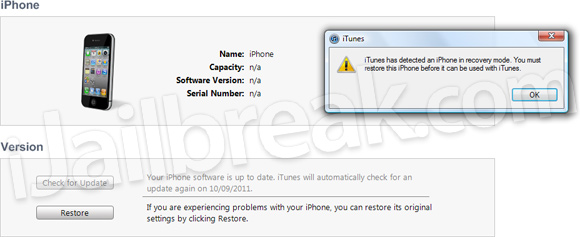
Step 3) – Now comes the hardest part; You must put your iPhone, iPod Touch or iPad into DFU mode. This is done by doing the following:If you enter DFU mode correctly iTunes will open telling you that that you must restore your iPhone, iPod Touch or iPad.
- Turn your iPhone, iPod Touch or iPad off.
- Hold the Power and Home Button for exactly 10 seconds.
- Once you Hold the Power and Home Button for 10 seconds release the Power Button and continue holding the Home Button for up to 30 seconds
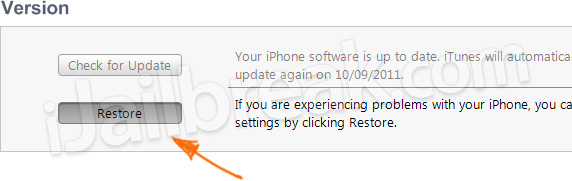
Step 4) - With iTunes open press Shift+Restore (Windows) or Option+Restore (Mac) and select the iOS 4.3.5 firmware file. Upon doing this your iPhone, iPod Touch or iPad will begin restoring itself to the iOS 4.3.5 firmware without any problems as the iOS 4.3.5 firmware is the latest official firmware.For more downgrading guides visit our How To Downgrade section. Let us know if you had any problems in the comments section below…
Wednesday, September 18, 2013
Downgrade iOS 5 0 1 To 4 3 3 4 3 5 On iPhone 4 3GS iPad 2 1 iPod touch
Want to downgrade 5.0.1 to 4.3.5 / 4.3.3 ? Well, in this post I will show you how to downgrade iOS 5.0.1 to 4.3.3 / 4.3.5 or to whichever version of iOS you are interested in for iPhone 4, 3GS, iPod touch 4G, 3G and iPad.
Downgrade 5.0.1 to 4.3.3 / 4.3.5 - Requirement :
Before we show you how to downgrade 5.0.1 to 4.3.3 / 4.3.5 or any iOS version please keep in mind that you can only downgrade your iOS version only if you have saved your SHSH blobs (for the older iOS version) using either Cydia or TinyUmbrella (or even the “copy from /tmp during restore” method for advanced users).
iPhone 4S downgrade still not available as it cant be jailbroken so far.
How to downgrade 5.0.1 to 4.3.3 / 4.3.5 - iPhone 4, 3GS, iPod Touch 4G, 3G, iPad:
Step 1: Make sure that you have downloaded the version of iOS which you gonna downgrade to (4.3.5, 4.3.3 or any iOS version), you can download any iOS firmware from our library -
Step 2: Navigate to :
Windows Users: Windows > System 32 > drivers > etc
Mac Users : etc
Open hosts file with the text editor then add the following code to the end of the file :74.208.105.171 gs.apple.com
Alternatively: Use TinyUmbrella to make iTunes look at Cydias Server in the Advanced options.
Step 3: Plug your iOS device and switch it off
Step 4: Put your iOS device in DFU mode (If you dont know how to put your device in DFU mode )
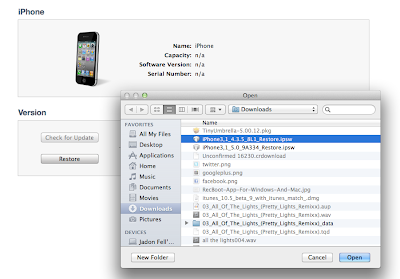
Step 5: Select the firmware you gonna downgrade to manually to restore your deice. (Shift on Windows, and option on a Mac)iTunes will till you that it will talk to Apple servers but actually it will talk to Cydia servers.Step 6: You may receive 10xx error, but dont worry, this is normal and has a quick fix - to fix such errors.
Now you have successfully downgrade iOS 5.0.1 to 4.3.3 / 4.3.5 , but in case you found any problems doing this, please let us know om the comment section.



Subscribe to:
Posts (Atom)