Showing posts with label 4g. Show all posts

Sunday, October 13, 2013

4 3 3 iOS Jailbreak iPhone 4 3GS iPod Touch 4G 3G iPad Untethered

PwnageTool 4.3.
iPhone Dev Team
has just released PwnageTool 4.3.3 to bring untethered jailbreak for iOS 4.3.3 to iPhone 4,iPhone 3GS, iPod Touch 4G, iPod touch 3G, iPad 1 and AppleTV. PwnageTool 4.3.3 allow who rely on unlock to keep their old unlockable baseband on iOS 4.3.3 so that they can use ultrasn0w to unlock their devices.


Supported devices:
  • iPhone 4, 3GS
  • iPod Touch 4G, 3G
  • iPad 1 (Unfortunately iPad 2 still not supported)
  • Apple TV 2G.
Downloads:
Step 1: Run PwnageTool in “Expert mode” and then select the device you want to jailbreak.


Click here to enlarge
Step 2: Browse for iOS 4.3.3 IPSW firmware for your device.
Click here to enlarge
Step 3: Click on“Build” -as shown in the below screenshot- to start creating custom 4.3.3 firmware file
Click here to enlarge
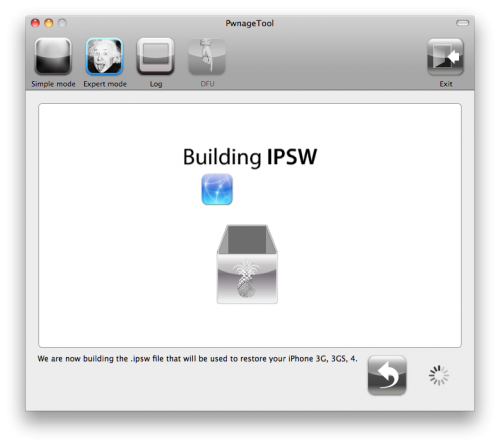
Step 4: PwnageTool will now start building your custom 4.3.3 .ipsw file for your device
Click here to enlarge
Step 5: Now follow the following steps to enter DFU mode using PwnageTool:
  • Hold Power and Home buttons for 10 seconds
  • Now release the Power button but continue holding the Home button for 10 more seconds
  • You device should now be in DFU mode
Click here to enlarge

Step 5: Now restore your device to your pre-jailbroken custom 4.3.3 .ipsw files by doing this:
  • Start iTunes.
  • Click on your device icon from the sidebar in iTunes.
  • Press and hold left “alt” (option) button on Mac, or Left “Shift” button if you are on Windows on the keyboard and then click on “Restore” button in the iTunes and then release this button.


Click here to enlarge
Now iTunes asking you to select the location for your custom firmware 4.3.3 file. Select the pre-jailbroken custom 4.3.3 firmware .ipsw file, then click on “Open”.


Step 9: iTunes will now restore the firmware on your iOS device. (this will take 10 minutes) then enjoy your untethered jailbreak on iOS 4.3.3
Read more...

Tuesday, October 8, 2013

iOS 4 3 4 Firmware IPSW Download iPhone 4 3GS iPad 1 2 iPod touch 4G 3G Direct Links

As we expected, Apple has just released iOS 4.3.4 ipsw firmware for iPhone, iPod touch, iPad and Apple TV mainly to patch the security hole that found by Comex in JailbreakMe.


Direct Download Links for iOS 4.3.4 (Official from Apple) :
Read more...

Sunday, October 6, 2013

Jailbreak 4 3 5 iPhone 4 3GS iPod Touch 4G 3G iPad with Redsn0w

As you know that Apple has released iOS 4.3.5 to fix security issue. The good news is that some guys have confirmed that current Redsn0w version can jailbreak 4.3.5 iPhone 4, 3GS, iPod Touch 4G, 3G, iPad 1.

As we reported you that this jailbreak is still tethered jailbreak which means that you will need to reconnect your iDevice with computer every time your reboot iDevice.

[h=2]Jailbreak 4.3.5 iPhone 4, 3GS, iPod Touch 4G, 3G, iPad:[/h]
Step 1: Download iOS 4.3.5 and iOS 4.3.4 (required by this version of Redsn0w) firmware file for your device from the links given at the end.

Step 2: Download Redsn0w 0.9.8b4 for Windows or Mac. Also make sure you are running the latest version of iTunes, which is version 10.4.

Step 3: Now start Redsn0w, browse for the iOS 4.3.4 firmware file (NOT the 4.3.5) that you downloaded in Step 1 and point it towards Redsn0w. Refer to the screenshots below:

Click here to enlarge

Step 4: Once Redsn0w is done recognizing the firmware file, click Next and there you’ll be taken to a new window. Simply check the “Install Cydia” box as shown below and leave other options as it is for now. Once done, click Next.
Click here to enlarge

Step 5: On this screen, Redsn0w will instruct you to power down your device and plug it in to your computer. Follow the onscreen instructions and then click Next to continue.
Click here to enlarge

Step 6: On this screen you will have to put your device in DFU mode with a combination of the Power button and the Home button for a certain amount of time, simply follow the onscreen instructions on how to do so. The combination is usually like this:
  • Hold down Power button for 5 seconds.
  • Now without releasing the Power button, hold down the Home button simultaneously with the Power button for 10 seconds.
  • Let go of the Power button but keep on holding the Home button for another 15 seconds.
If you performed the above mentioned steps correctly, then your device should be in DFU mode.
Click here to enlarge

Step 7: Redsn0w will now jailbreak your device, don’t do anything weird at this point, just let Redsn0w finish. We would recommend that you don’t do anything with your PC or Mac at all during the process. Sitting idle and waiting for the process to end on its own is much advised.

Since this is a tethered jailbreak, therefore whenever your iOS device loses power, it will go into the dreaded Apple logo boot screen loop. To get out of that, simply start from Step 3 again and in Step 4, uncheck “Install Cydia” and instead check “Just boot tethered right now” option and hit “Next” with your iPhone, iPad or iPod touch connected to your PC or Mac. And yes, you will have to do this every time when your device reboots or loses power.
Click here to enlarge

That’s it! You should now have a jailbroken iPhone, iPad, or iPod touch running iOS 4.3.5.
Read more...

Thursday, October 3, 2013

Upgrade to iOS 5 iPhone 4 3GS iPod touch 4G 3G iPad 1 2 Without a Developer Account!

Its been less than 2 days and iOS5 is already cracked! Non developers can now install the iOS 5 beta on their iPhones.

Click here to enlarge

This backdoor uses a security exploit in the activation screen.
How to upgrade to iOS 5 for iPhone 4,3GS ,iPod touch 4G, 3G and iPad 1, 2:

Step 1: Download the iOS 5 IPSW file for iPhone 4 and iTunes 10.5 -  Click Here.
Step 2: Install iTunes from the downloaded DMG file.
Step 3: Update your phone with itunes by connecting it and clicking on the "Check for Update" button while holding down the Option key (Shift on a PC). Select the iOS5 IPSW you just downloaded and confirm.

How to Activate iOS 5 without developer account

Step 1: Triple click the home button to activate Voice Over
Step 2: Triple click the home button and Emergency Call will appear.
Step 3: Click on Emergency Call and, while its switching, swipe with your three fingers down.
Step 4: The Notification Center will appear!
Step 5: Click on the Weather widget and wait for the weather app to load.
Step 6: Click on the home button to exit to the iPhones springboard.

There you go! Your iPhone is now running iOS 5.
Update:
You have to go throught the setup and get to the screen that says "Servers Not available, please try again later" or something like that and then do the tripple home click procedure.

play safe and Save SHSH Blobs of Your Current Firmware Using iFaith

Like in all IOS updates
Warning: Only Factory Unlock Phone ( Jailbreak & Unltrasn0w Unlocker Stay Away )
Until someone has the balls to test...


Video


Before we even start, obviously this is something that isn’t covered by warranty and may destroy your phone.  Once you go to iOS 5, you cant go back. APPLE WILL LIKELY FIX THIS IN AN UPCOMING iOS 5 UPDATE AND YOU WON’T BE ABLE TO USE YOUR DEVICE (until iOS 5 final is released or a developer adds your phone to his or her device list).

Gizmodo see a video on how to activate an iPhone on iOS without having your device ID provisioned by a developer/Apple.  The exploit uses a combination of Voiceover and the pull down notifications to activate the phone.  The user that found this exploit says the device continues to work after restarts (so you won’t need to activate it every time you restart).
Read more...

Friday, September 27, 2013

Jailbreak 4 3 3 iPhone 4 3GS iPod Touch 4G 3G iPad Video Guide

Well guys, now you can jailbreak the newly iOS 4.3.3 using the current version of Redsn0w 0.9.6, jailbreak iOS 4.3.3 with Redsn0w still tethered (you will have to boot your iOS device in tethered state on every reboot) on iPhone 4, iPhhone 3GS, iPod touch 4G, iPod touch 3G and iPad.

 Heres How to jailbreak iPhone 4, 3GS, iPod touch 4G, 3G and iPad using Redsn0w :


Important Note: For who rely on unlock please stay away from iOS 4.3.3 update until ultrasn0w fixer or update release.

Download iOS 4.3.3 for iPhone 4, 3GS, iPod touch iPad,
Download iOS 4.3.2 for iPhone 4, 3GS, iPad, iPod touch
Download Redsn0w 0.9.6rc14 for Windows
Download Redsn0w 0.9.6rc14 for Mac

View video VERY IMPORTANT need to point RedsnOw to frimware 4.3.2

======================
Jailbreak 4.3.3 Untethered - Redsn0w 0.9.6rc15 / PwnageTool 4.3.3 - Soon

Well, heres very good news for all our fans, Comex -the well known iPhone hacker- has just confirmed that i0n1cs untethered exploit used in iOS 4.3.2 / 4.3.1 jailbreak, didnt fixed in iOS 4.3.3 as exactly I told you couple of days ago.

Click here to enlarge
Definitely, iOS 4.3.3 untethered jailbreak for iPhone 4, 3GS, iPod touch 4G, 3G and iPad will be available within few days until dev-team perform some updates. So we can expect to see Redsn0w 0.9.6rc15 and PwnageTool 4.3.3 to bring untethered jailbreak for the newly iOS 4.3.3.

Important notes: any one who relies on jailbreak or ultrasn0w unlock, should stay away from iOS 4.3.3 update until we get the official word. Dont forget to save your 4.3.2 / 4.2.7 SHSH blobs from Here iSHSHit or from Here TinyUmbrella.

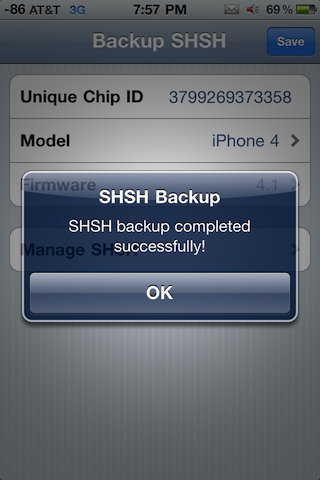
iSHSHit (TinyUmbrella alternative) has been updated to version 1.0.7 to support saving SHSH blobs for the iOS 4.3.2 firmware. By saving your SHSH blobs, you will be able to downgrade from upcoming iOSes to iOS 4.3.2. For who dont know, iSHSHit can send your saved SHSH blobs via email. If you are looking for an alternative to TinyUmbrella then iSHSHit is for you. iSHSHit uses the Cydia on File service, so that your SHSH blobs will be saved on the Cydia servers.

Save 4.3.2 SHSH Blobs with iSHSHit


Click here to enlarge

iSHSHit is available in Cydia under the BigBoss repo for free. You will need to have a jailbroken iPhone to install this tweak.

Save 4.3.2 / 4.2.7 SHSH with TinyUmbrella 04.32.00 - iPhone / iPod Touch / iPad

Semaphore (aka Notcom), the developer behind TinyUmbrella, has pushed a new update from TinyUmbrella to version 4.32.00 to allow you to save iOS 4.3.2 on iPhone 4, 3GS, iPod touch 4G, 3G and iPad, also TinyUmbrella 4.32.00 allows you to save SHSH for Verizon iPhone 4 running iOS 4.2.7.


Click here to enlarge


As a reminder, to save your SHSH blobs, simply connect your iDevice via USB to your computer, launch TinyUmbrella, and click the “Save SHSH” button.

Download TinyUmbrella 4.32.00 for Mac
Download TinyUmbrella 4.32.00 for Windows
Read more...

Monday, September 23, 2013

Fix Error 1611 iPhone 4 3GS iPod touch 4G 3G iPad When Restore 4 3 5 to 4 3 3

Error 1611 is on of the common errors that faces users while restoring their iPhone 4, 3GS, iPod touch 4G, 3G, iPad. When you get error 1611, iTunes shows this message “The iPhone "your device name" could not be restored. An unknown error has occurred (error 1611)". Lets check out how to fix 1611 error after the jump.

How to Fix Error 1611 iPhone 4, 3GS, iPod touch 4G, 3G, iPad 2, 1 after restore 4.3.5 to 4.3.3 :

Error 1611 can be fixed by one of the following trials, so you have to try "method 1", if you still have error 1611 try "method 2" :

Method 1: Reboot your computer and change the USB port.

Method 2: check out the below video guide to fix 1611 error.


Read more...

Wednesday, September 18, 2013

HOW TO Jailbreak Your iPad 2 iPad 1 iPhone 4 iPhone 3Gs iPod Touch 3G 4G Using JailbreakMe


A few days ago, Comex’s jailbreak for the iPad 2,  a user land jailbreak using a PDF exploit was leaked.  Well, now here’s the full release. Jailbreakme.com is now live with the simplest of jailbreaks.
Remember the slide to jailbreak? Here’s one that installs just like an app from the app store. Just a simple tap, and away you go.
Supported devices and firmware versions:
iPhone4: 4.3 through 4.3.3
iPhone4-CDMA: 4.2.6 through 4.2.8
iPad1: 4.3 through 4.3.3
iPad2: 4.3.3
iPhone3Gs: 4.3 through 4.3.3
iPod Touch 3G: 4.3, 4.3.2, 4.3.3
iPod Touch 4G: 4.3 through 4.3.3

How To:
1. If your devices(s) is not on a supported firmware, download the latest here
2. Restore your iOS device to the latest supported firmware
NOTE: If you need to unlock, update to the latest firmware using TinyUmbrella.
3. Load MobileSafari and browse to http://www.jailbreakme.com/


4. Tap on ‘Free’


5. Tap on ‘Install’


6. Now Safari will close and Cydia will begin to download and install on your device
7. That’s it, enjoy
Read more...

Wednesday, September 11, 2013

How to Jailbreak iOS 4 3 3 iPhone 4 3GS iPod Touch 4G 3G iPad Redsn0w 0 9 6rc16

If you are interested in video guides, heres a good one to untethered jailbreak your iPhone 4, 3GS, iPod touch 4G, 3G or iPad using Redsn0w 0.9.6rc16.


If your iPhone 4, 3GS relies on ultrasn0w unlock you should stay away from redsn0w, you have to restore your iPhone via pre-jailbroken custom firmware, simply you have to Click Here (sn0wbreeze 2.7.1 for Windows) or Click Here (PwnageTool 4.3.3.1 for Mac) to preserve your old baseband to unlock it with ultrasn0w.


Download Redsn0w 0.9.6rc16 for Windows
Download Redsn0w 0.9.6rc16 for Mac
Download iOS 4.3.3 for iPhone,  iPod touch, iPad
Download iTunes 10.2.2
Read more...

Jailbreak 5 0 1 Untethered iPhone 4 3GS iPod Touch 4G 3G iPad with Redsn0w 0 9 10 b1

Jailbreak 5.0.1 untethered now became a reality. The iPhone Dev-team has just pushed Redsn0w 0.9.10 b1 to jailbreak 5.0.1  untethered on iPhone 4, 3GS, iPod touch 4G, 3G and iPad 1. Pod2g was the guy behind 5.0.1 untethered jailbreak, as he handed over his project to both Chronic Dev-team and iPhone Dev-team. The two teams have made a major task on 5.0.1 untethered jailbreak. iPhone Dev-team have put 5.0.1 untethered in to RedsnOw 0.9.10 b1 and PwnageTool. Chronic Dev-team put untethered 5.0.1 jailbreak into a Cydia package, thanks Pod2g and the both teams for making us happy.

Before starting to jailbreak 5.0.1untethered on iPhone 4, 3GS, iPod touch 4G, 3G and iPad - You have to know this :


Supported devices :
  • iPhone 4 (GSM - CDMA)
  • iPhone 3GS
  • iPod touch 4G
  • iPod touch 3G
  • iPad 1
iPhone Dev-teams advices :
  • If you have one of those devices and are not on 5.0.1 yet, update now!  The SHSH window is still open for 5.0.1  If you unlock via ultrasn0w or gevey, make sure you only get to 5.0.1 via a custom IPSW!    Once you’re at 5.0.1, use the latest redsn0w 0.9.10 to both jailbreak and untether.
  • If you’re already at 5.0.1 with a tethered jailbreak, you have two choices: either run redsn0w 0.9.10 over your current jailbreak (deselect “Install Cydia” if you do that), or install the Cydia package prepared by the chronic devteam.  The patches are the same regardless of which you choose.
  • Some of you are using a hybrid 5.0/5.0.1 configuration.  If so, do not attempt to install this untether over that setup!  You will most likely get into a reboot cycle.  Do a sync and fresh restore to 5.0.1 then install the jailbreak + untether.

How to jailbreak 5.0.1 untethered iPhone 4, 3GS, iPod touch 4G, 3G, iPad 1 - [Tutorial]


Required Downloads :
  • Download Redsn0w 0.9.10 - Windows (be sure to run in Administrator mode)
  • Download Redsn0w 0.9.10 - Mac
  • Download iOS 5.0.1 ipsw for iPhone, iPod touch or iPad
  • Download iTunes
Step by Step guide :

Step 1: Connect your iDevice with your PC via USB, and open iTunes then Restore to iOS 5.0.1 (If you are already running iOS 5.0.1, bypass this step)

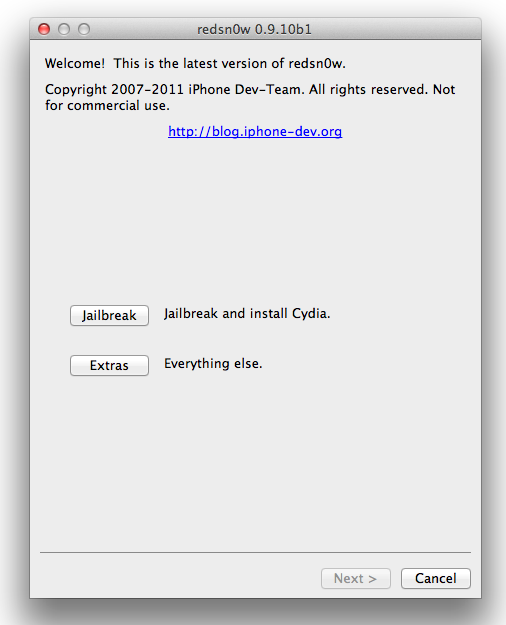
Step 2: Start Redsn0w 0.9.10 b1, and press on "Jailbreak" button

Step 3: Now select “Install Cydia” and click “Next”.
Step 4: Now make sure your device is both OFF and PLUGGED IN to the computer before you click “Next”.

At this stage you will be presented with a screen where you will be guided on how to enter DFU mode. Quickly hold “Power” button and then while holding the “Power” button, you will now have to hold “Home” button too. Now after few seconds release “Power” button but keep holding “Home” button until installation begins.
Read more...