Showing posts with label beta. Show all posts
Showing posts with label beta. Show all posts
Sunday, October 13, 2013
iPhoneYeta 1G beta
iPhoneYeta is a new version on Jailbroken Quick Tool..
New look,
compatible on itunes 5,
Features:
Auto update,
No wifi method - added ultrasn0w 1.2.4.
manual deb
manual ipa.
backup/restore contacts,notes,sms,
Chicken baseband
skull remover cause of greenpoison
Android lock remover
Host file tool - you can set hosts to cydia,apple or delete hosts file
Jailbreak information - all information for jailbreaking are here.
Recovery tool - can kick and enter in recory mode
Download here:
Multiupload.com - upload your files to multiple file hosting sites!
Please report some bugs here:
Not yet tested on windows 7


Friday, October 11, 2013
iOS 5 Beta 3 Whats New Change Log
The new Beta version of iOS5 has been recently released for Developers by Apple. The final version of iOS will be released with the launch of new iPhone5 that is expected in September. Now we are going to demonstrate a number of new features that are introduced in iOS 5.0 Beta 3 firmware released today that is only for developers.
- The new Beta version of firmware iOS5 is compatible with most of new iDevices like, iPhone 3GS and 4, iPod 3rd and 4th Gen and iPad 1st & 2nd Gen. these devices are now added to the list of 2nd generation Apple TV.
- The new version of IMesage Beta3 is only for those who are running iOS 5 Beta 2 or iOS 5 beta 3.
- There is a change like with the release of new version by Apple every time that you will new need to install iTunes 10.5 beta 3 to install firmware iOS5 Beta 3 to you iDevice.
- The syncing of iPhone having iOS5 beta 3 is only possible with iTunes 10.5 Beta3.
- There is a fix for Reminder App that had some bugs in using it.
- Bugs to be found in Settings, MMs and Images in iOS 5 Beta 2 are resolved
- It is easy to backup your data using iCloud.
- There is draw back that MMS cannot send videos of longer length.
- The editing function introduced in iOS5 that could remove red-eye deduction. The pictures edited with red-eye correction are synchronizing without changes applied.
- There is a problem of synchronization. The solution is that you should restart you iPhone and resync.
- The bug that did not allow the volume control to be used in videos is also fixed with the help of Cristian.
- The new firmware is built A5259f
- Fixed problems with video mirroring between 2 and Apple TV iPad
- The icon of GPS on the status bar during the usage of Location service was resolved, a bug with twitter.·
- The camera app was slow in older beta version that is now swift in opening and operations· Addition of a new screen about the information of usage of GPS by your iPhone.
- A change after a long time in ringtones, two new tones were added that have been been activated yet named as Tweet and Sherwood
- The performance of this beta version is much better than the previous beta version Beta2.
- The icon for Reminder app has been changed.
- New Menu settings "Location Settings". From here you can enable or disable some functions
- There is option to disable the voice roaming voice traffic to avoid the usage of the service by provider for some occasions.
- It is good that you can easily clear cache and history of Safari.
- Another change is that “iTunes Wi-Fi Sync” has replaced “Wi-Fi Sync Settings”
- No issue in using FaceTime
- WiFi to Sync screen is more clear.


Friday, October 4, 2013
iOS 5 Beta 1 IPSW Download iPhone iPod Touch iPad Direct Links No Devoloper ID
The guys over Jailbreakzone uploaded all iOS 5 firmware ipsw files for iPhone 4, iPhone 3GS, iPod touch 4G, iPod touch 3G, iPad 1, iPad 2 and Apple TV 2G.

Important notes:
------ Guide: How To Install iOS 5 -------
Cant wait for iOS 5 release this fall and you dont have a developer account? We have good news, you can get your hands dirty now thanks to the powers of the internet. You can now install iOS 5 on your iOS device without need to a developer account, yes you wont need it.

Guide:
STEP 1: Install iTunes 10.5 beta from direct link here. [Mac - Windows 32 bit - Windows 64 bit]
STEP 2: Now you need to download the right firmware file for your iOS device:
STEP 3: Now open iTunes that you downloaded above and restore using your firmware.
you need to activate with original simcard .
Warning: Only Factory Unlock Phone ( Jailbreak & Unltrasn0w Unlocker Stay Away )
Upgrade to iOS 5 - iPhone 4, 3GS, iPod touch 4G, 3G, iPad 1, 2 - Without a Developer Account!
Read more...

Important notes:
- Please note that this is iOS 5 beta 1 for SDK, and no there is no jailbreak available for iOS 5 so far.
- Your device will need to be activated, you can activate your device by going to iOS Activations for that. Install a beta on a non-activated device will render it useless.
Apple TV 2G (4.4, 303.55MB)
iPad 1G (669.66MB)
iPad 2 (WiFi, 677.89MB)
iPad 2 (GSM, 685.17MB)
- Multiupload (direct)
- Megaupload (not done uploading)
- Depositfiles
- Filesonic
- Fileserve
iPad 2 (CDMA, 691.77MB)
- Multiupload (direct)
- Megaupload (not done uploading)
- Depositfiles
- Filesonic
- Fileserve
iPhone 3GS (609.2MB)
- Multiupload (direct)
- Megaupload (not done uploading)
- Depositfiles
- Filesonic
- Fileserve
iPhone 4 (GSM, 730.2MB)
- Multiupload (direct)
- Megaupload (not done uploading)
- Depositfiles
- Filesonic
- Fileserve
iPhone 4 (CDMA, 744.01MB)
- Multiupload (direct)
- Megaupload (not done uploading)
- Depositfiles
- Filesonic
- Fileserve
iPod Touch 3G (578.16MB)
- Multiupload (direct)
- Megaupload (not done uploading)
- Depositfiles
- Filesonic (not done uploading)
- Fileserve
iPod Touch 4G (717.74MB)
- Multiupload (direct)
- Megaupload (not done uploading)
- Depositfiles
- Fileserve
iTunes 10.5 (Mac OS X, 71.55MB)
iTunes 10.5 (Windows x86/32-bit, 72.48MB)
iTunes 10.5 (Windows x64(64-bit, 74.07MB)
------ Guide: How To Install iOS 5 -------
Cant wait for iOS 5 release this fall and you dont have a developer account? We have good news, you can get your hands dirty now thanks to the powers of the internet. You can now install iOS 5 on your iOS device without need to a developer account, yes you wont need it.

Guide:
STEP 1: Install iTunes 10.5 beta from direct link here. [Mac - Windows 32 bit - Windows 64 bit]
STEP 2: Now you need to download the right firmware file for your iOS device:
STEP 3: Now open iTunes that you downloaded above and restore using your firmware.
you need to activate with original simcard .
Warning: Only Factory Unlock Phone ( Jailbreak & Unltrasn0w Unlocker Stay Away )
Upgrade to iOS 5 - iPhone 4, 3GS, iPod touch 4G, 3G, iPad 1, 2 - Without a Developer Account!
Its been less than 2 days and iOS5 is already cracked! Non developers can now install the iOS 5 beta on their iPhones.

This backdoor uses a security exploit in the activation screen.
How to upgrade to iOS 5 for iPhone 4,3GS ,iPod touch 4G, 3G and iPad 1, 2:
Step 1: Download the iOS 5 IPSW file for iPhone 4 and iTunes 10.5 -
Step 2: Install iTunes from the downloaded DMG file.
Step 3: Update your phone with itunes by connecting it and clicking on the "Check for Update" button while holding down the Option key (Shift on a PC). Select the iOS5 IPSW you just downloaded and confirm.
How to Activate iOS 5 without developer account
Step 1: Triple click the home button to activate Voice Over
Step 2: Triple click the home button and Emergency Call will appear.
Step 3: Click on Emergency Call and, while its switching, swipe with your three fingers down.
Step 4: The Notification Center will appear!
Step 5: Click on the Weather widget and wait for the weather app to load.
Step 6: Click on the home button to exit to the iPhones springboard.
There you go! Your iPhone is now running iOS 5.
Wednesday, October 2, 2013
Download iOS 5 1 Beta 2 Firmware IPSW iPhone 4S 4
Download iOS 5.1 firmware beta 2 for developers. Apple has just seeded iOS 5.1 beta 2 for developers with build number 9B5127c. The major update on iOS 5.1 beta 2 is the feature related to the management of photos in the Photo Stream.

Download iOS 5.1 Beta 2 for iPhone 4S, 4, 3GS, iPod Touch 4G, 3G, iPad 2, 1 (Developers Only)

Along with iOS 5.1 for iPhone 4S, 4, 3GS, iPod touch 4G, 3G, iPad 2 and iPad 1, Apple released new version of Xcode 4.3 and Apple TV.
NEW: Photos taken using iOS 5.1 can be deleted from Photo Stream on your device and will be removed automatically from Photo Stream on your other iOS 5.1 devices. Older photos can be manually deleted from your iOS 5.1 devices.
Download iOS 5.1 Beta 2 for iPhone 4S, 4, 3GS, iPod Touch 4G, 3G, iPad 2, 1 (Developers Only)
Sunday, September 29, 2013
Jailbreak iOS 5 beta 3 iPhone iPod Touch iPad Redsn0w Caution
Jailbreak iOS 5 beta 3 - iPhone, iPod Touch, iPad - Redsn0w
Today the new Beta version of iOS 5 has been released named as iOS5 Beta 3. now there is need for most of the users of this new version of firmware to jailbreak their devices. There is good news for those that they can easily jailbreak the latest version of iOS 5 beta 3. There is no tool updated for the jailbreak, but the last version of Redsn0w that was released to jailbreak iOS 5 Beta 2 can jailbreak iOS Beta 3 as well. But this new version and jailbreak is only for developers. Here is the announcement made by MuscleNerd about the jailbreaking of new firmware.iOS 5 Beta 3 Can Be Jailbroken Using Redsn0w 0.9.8b1; But App Store Apps Are Not WorkingThis jailbreak method is same as was in the past for Redsn0w by putting the device in DFU mode, but remember this jailbreak is also tethered.
Here is a bit guide about jailbreaking new version iOS 5 Beta 3. first update you iDevice with this latest firmware via iTunes. Then you need to run Redsn0w 0.9.8 and select the firmware iOS 5.0 beta1. if you select other firmware then you will not be able to jailbreak your device running iOS Beta3.
Again this is tethered jailbreak, it means that every time you switch off your device, you will have to connect it to your PC and use the option “Just boot tethered right now” to use your device.


 iOS 5 beta 3 that has just been seeded to developers of iOS developer program can be jailbroken using Redsn0w 0.9.8b1.iPhone Dev team had released Redsn0w 0.9.8b1 for Mac and Windows for iOS beta 1 for developers of jailbreak app developers so that they can test and debug their jailbreak apps and tweaks on iOS 5.
After upgrading your iOS device to iOS 5 beta, the trick is to point Redsn0w 0.9.8b1 to iOS 5 beta 1 firmware file to jailbreak it.MuscleNerd of the iPhone Dev Team has also confirmed this on Twitter:
Todays 5.0b3 can be jailbroken with last months redsn0w http://is.gd/6eek4Y (point it at 5.0b1 IPSW..devs only please!)
But please proceed with caution if you’re not a jailbreak app developer as we’re hearing reports that App Store apps do not working after jailbreaking iOS 5 beta 3. ModMyI reports: After playing around on iOS 5 beta 3 while jailbroken, it has been discovered that AppStore applications do not work. They crash and refuse to open. It is an issue that has been reported by a few people, including myself.
According to hacker, Clayton Braasch it is due to a sandboxing issue: To reiterate: theres a sandbox issue causing App Store apps to crash after jailbreaking iOS 5 beta 3. Stay away if youre not a developer.
It needs to be seen if this is due to some anti-jailbreaking measure introduced by Apple in the latest iOS 5 beta. Wednesday, September 25, 2013
Redsn0w 0 9 8b7 Released With Added Support To Updated iPad iOS 5 Beta 6 IPSW
A new release of Redsn0w has just been released with added support for the updates ipsw file for iPad 1 iOS 5 Beta 6.
MuscleNerd has posted the new on his twitter account. This minor update comes after Apple updating the IPSW for the iPad 1 on iOS 5 Beta 6 But they didn’t change the version number or the file name for unknown reasons.
This update of Redsn0w can jailbreak both th original and the updated ipsw. Also this update supports iOS 4.3.5 and iOS 4.2.10 which means you won’t have to point Redsn0w to IPSWs of iOS 4.3.4/4.2.9 when using it to jailbreak your device.Update #7: Apple updated the iPad1 iOS5b6 IPSW without changing its version number or filename, so we’re releasing redsn0w 0.9.8b7 to handle both the original and changed IPSW. We’ve also added explicit support for a tethered 4.3.5/4.2.10 jailbreak (instead of pointing at the 4.3.4/4.2.9 IPSWs) and fixed a 4.2.10 problem.Here is how to use Redsn0w to jailbreak your device[Tutorial].
Download Redsn0w 0.9.8b7 For [Mac & Windows].


Monday, September 23, 2013
iOS 5 2 beta 2 can be Jailbroken using existing tools

According to MuscleNerd of the iPhone Dev-Team, the just-released iOS 5 beta 2 can be Jailbroken using the same redsn0w tools used to Jailbreak the first beta.
5.0b2 can be jailbroken w/redsn0w from 2 wks ago http://is.gd/6eek4Y with redsn0w 0.9.8 b1 (must point redsn0w at 5.0b1 IPSW)..devs ONLY please
Apple has just released the second beta version of iOS 5 (build 9A5248d)to developers of iOS Developer program.
iOS 5 beta 2 is available for iPhone 4, iPhone 3GS, iPod Touch 4th generation, iPod Touch 3rd generation, iPad and iPad 2.
Apple unveiled iOS 5 at WWDC 2011 Keynote, which includes more than 200 features for iPhone, iPad and iPod Touch users such as revamped Notification system with Notification Center, iMessage, PC Free, Wi-Fi Sync Newsstand, Reminders, deep Twitter integration and lots more. Apple has also improved the Camera app, Photo app, mobile Safari browser, Mail and Calendar app in iOS 5. With iOS 5, users also won’t need a computer.
According to the release notes, Apple has enabled the Wi-Fi sync feature in iOS beta 2 for Mac users:
In iOS 5.0 beta 2, wireless syncing is now available for the Mac. It requires iTunes 10.5 beta 2 and OS X 10.6.8 or Lion. You will see an option to enable wireless syncing when you connect your device to iTunes with the USB cable. It is recommended you perform your initial sync with a cable after restoring your device.Wireless syncing is triggered automatically when the device is connected to power and on the same network as the paired computer. Or, you can manually trigger a sync from iTunes or from Settings -> General -> iTunes Sync (same network as paired computer required). Be sure your device is plugged into a power source when performing Wireless syncs.
iOS 5 Beta 1 that was released couple of weeks back had revealed quite a few hidden features.
Please note that iOS 5 beta is meant only for developers as devices updated to iOS 5 beta can only be restored to earlier versions of iOS if you’ve the SHSH blobs.
Thursday, September 19, 2013
How To Downgrade From iOS 5 Beta To iOS 4 3 5 Without Saved SHSH Blobs
With a lot of people running the iOS 5 beta series firmware, I am sure downgrading back down to the official iOS 4.3.5 firmware has crossed your mind. If this sounds like you, you will be glad to know that the process of downgrading back to the iOS 4.3.5 firmware is extremely simple. It does not involve changing your hosts file or using the application TinyUmbrella and it doesn’t require you to have saved SHSH blobs. This is because the iOS 4.3.5 firmware is the latest official firmware available.
Note: The iOS 4.3.5 firmware can be Jailbroken but it is a tethered Jailbreak. Follow our step-by-step guides in our
How To Jailbreak section.
You can follow the straightforward guide below for downgrading your iPhone, iPod Touch or iPad running the iOS 5 Beta 1, iOS 5 Beta 2, iOS 5 Beta 3, iOS 5 Beta 4, iOS 5 Beta 5, iOS 5 Beta 6 or iOS 5 Beta 7 firmware to the iOS 4.3.5 firmware.
Downgrading From iOS 5 Beta 1 – 7 To iOS 4.3.5
Step 1) - The first thing you are going to need to do is ensure you are running the latest development version of iTunes on your computer (which will be iTunes 10.5 beta 7). You can download iTunes 10.5 beta 7 for Windows and Mac OS X from the Apple Dev Center.
Step 2) – Once you have ensured you are running the latest version of iTunes on your computer you will need to make sure you have access to the iOS 4.3.5 firmware. If you need to download this firmware file you can go to the iJailbreak Downloads Section.
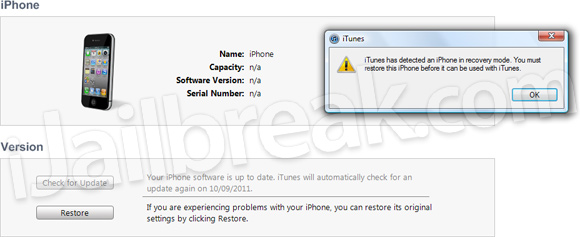
Step 3) – Now comes the hardest part; You must put your iPhone, iPod Touch or iPad into DFU mode. This is done by doing the following:If you enter DFU mode correctly iTunes will open telling you that that you must restore your iPhone, iPod Touch or iPad.
- Turn your iPhone, iPod Touch or iPad off.
- Hold the Power and Home Button for exactly 10 seconds.
- Once you Hold the Power and Home Button for 10 seconds release the Power Button and continue holding the Home Button for up to 30 seconds
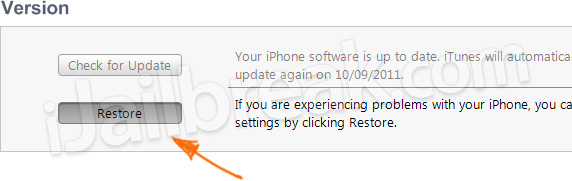
Step 4) - With iTunes open press Shift+Restore (Windows) or Option+Restore (Mac) and select the iOS 4.3.5 firmware file. Upon doing this your iPhone, iPod Touch or iPad will begin restoring itself to the iOS 4.3.5 firmware without any problems as the iOS 4.3.5 firmware is the latest official firmware.For more downgrading guides visit our How To Downgrade section. Let us know if you had any problems in the comments section below…
Tuesday, September 17, 2013
Redsn0w 0 9 8b7 Can Jailbreak iOS and 5 Beta 7 Download Links Here!
Yesterday, Apple has seeded iOS 5 Beta 7 for developers. Many would now be looking for a jailbreak for the new update. Well MuscleNerd has announced on his twitter account that the just released Redsn0w 09.8b7 can jailbreak iOS 5 Beta 7.

Of course you will have to point Redsn0w to iOS 5 Beta 6 IPSW firmware not the new one.
Here is our tutorial on how to use Redsn0w To Jailbreak iOS 5 Beta 1 and you can follow the same steps for Beta 7.
Download Redsn0w 0.9.8b7 For Windows / Mac
Apple releases iOS 5 Beta 7 Download Links Here!


Of course you will have to point Redsn0w to iOS 5 Beta 6 IPSW firmware not the new one.
Here is our tutorial on how to use Redsn0w To Jailbreak iOS 5 Beta 1 and you can follow the same steps for Beta 7.
Download Redsn0w 0.9.8b7 For Windows / Mac
Apple releases iOS 5 Beta 7 Download Links Here!
DMG Links:
iPad 2 WiFi + 3G (GSM)
iPad 2 WiFi + 3G (CDMA)
iPad (WiFi and WiFi + 3G)
iPhone 4 (GSM)
iPhone 4 (CDMA)
iPhone 3GS
iPod Touch (3rd Generation)
iPod Touch (4th Generation)
AppleTV
IPSW Links:
iMZDL: iOS 5 & Mac OS X 10.7
iTunes 10.5Beta7
Apple Mac OS X
Microsoft Windows
Microsoft Windows 64-bit
Safari 5.1.1
Update for Microsoft Windows
Update for Apple Mac OS X Lion
Apple Mac OS X Lion Uninstaller
iPad 2 WiFi + 3G (GSM)
iPad 2 WiFi + 3G (CDMA)
iPad (WiFi and WiFi + 3G)
iPhone 4 (GSM)
iPhone 4 (CDMA)
iPhone 3GS
iPod Touch (3rd Generation)
iPod Touch (4th Generation)
AppleTV
IPSW Links:
iMZDL: iOS 5 & Mac OS X 10.7
iTunes 10.5Beta7
Apple Mac OS X
Microsoft Windows
Microsoft Windows 64-bit
Safari 5.1.1
Update for Microsoft Windows
Update for Apple Mac OS X Lion
Apple Mac OS X Lion Uninstaller
WHATS New in IOS 5 beta7The following issues relate to using the 5.0 SDK to develop code.
Accounts
When creating an iCloud account, you can use any Apple ID as long as it is a full email address and not a MobileMe account. If you have a MobileMe account, you can move that account to iCloud. You can find more information on iCloud at: http://developer.apple.com/icloud
AirPlay
Starting in iOS 5, video content in applications and websites are AirPlay-enabled by default.
iOS 5 supports AirPlay of video via AV Foundation.
API Validation
NEW: Starting in iOS 5.0 development tools beta 7, it is possible to extract APIs used by an application and have them checked for private APIs usage. This option will be offered at Validation time.
Apple TV
Apple TV Software beta enables users to mirror the contents of an iPad 2 to an Apple TV (2nd generation) using AirPlay. This beta software also enables Photo Stream on Apple TV so users can access photos stored in iCloud. Apple TV Software beta is being provided to test the latest AirPlay functionality with your iOS 5 apps and web sites. If you wish to install Apple TV Software beta on your device, you must first register your device UDID in the iOS Developer Program Portal.
Slideshow settings are not remembered for slideshow playback (always plays back in Reflections theme). Screen savers settings are behaving properly.
Binary Compatibility
On applications linked against the iOS 5.0 SDK, scroll view content offsets will no longer be rounded to integral pixels during a pinch gesture.
Calendar
Birthday calendars are not currently available via the icloud.com website or in Windows. They will be available in a future release.
Core Image
Several filters have been added since beta 1. The current list now includes the following filters:
CIAdditionCompositing, CIAffineTransform, CICheckerboardGenerator, CIColorBlendMode, CIColorBurnBlendMode, CIColorControls, CIColorCube, CIColorDodgeBlendMode, CIColorInvert, CIColorMatrix, CIColorMonochrome, CIConstantColorGenerator, CICrop, CIDarkenBlendMode, CIDifferenceBlendMode, CIExclusionBlendMode, CIExposureAdjust, CIFalseColor, CIGammaAdjust, CIGaussianGradient, CIHardLightBlendMode, CIHighlightShadowAdjust, CIHueAdjust, CIHueBlendMode, CILightenBlendMode, CILinearGradient, CILuminosityBlendMode, CIMaximumCompositing, CIMinimumCompositing, CIMultiplyBlendMode, CIMultiplyCompositing, CIOverlayBlendMode, CIRadialGradient, CISaturationBlendMode, CIScreenBlendMode, CISepiaTone, CISoftLightBlendMode, CISourceAtopCompositing, CISourceInCompositing, CISourceOutCompositing, CISourceOverCompositing, CIStraightenFilter, CIStripesGenerator, CITemperatureAndTint, CIToneCurve, CIVibrance, CIVignette, and CIWhitePointAdjust
iBooks
iBooks 1.2.2 may fail to display some text or images in books. Please update to iBooks 1.3 in the App Store.
iCloud Backup
If you enable iCloud Backup, automatic backup with iTunes when syncing will be disabled. We also suggest that you manually back up your device with iTunes. Backups made with earlier versions of iOS 5 beta will soon become incompatible, and will no longer be available. It is strongly advised you upgrade to this version of the iOS 5 beta in order to continue backing up your devices.
iCloud Storage
NEW: Starting in iOS 5 beta 7, the requirements for specifying container identifier strings in your applications entitlements have changed. Each container identifier that does not include a wildcard character must exactly match the bundle identifier of an application published using the same team ID as your application. You are not required to include an entitlement that matches your app’s own bundle identifier; for example, a lite and pro version of your app could both specify the pro app’s bundle identifier to share the same container. The requirements for container identifiers that include wildcard characters have not changed, but you may need to update existing wildcard identifiers after changing any non-wildcard identifiers in your applications entitlements to match the new rules.
NEW: In this beta of iOS 5.0 the number of times an app can synchronize in quick succession with the servers has been reduced. If you are debugging your app and want to see whether your synchronize requests are being throttled, you can call the -[NSUbiquitousKeyValueStore _printDebugDescription] method directly in gdb. Please note that -[NSUbiquitousKeyValueStore _printDebugDescription] is an SPI so you are strongly advised not to use it in your app.
On KVS, the per-key limit has been raised to 64Kb (to match the per-app limit); and the maximum number of keys has been raised to 256.
During the iOS 5 beta period, any documents stored on the servers might be purged periodically before GM. Therefore, it is highly recommended that you do not store any critical documents or information on the servers.
Provisioning Profiles no longer need to be enabled for iCloud in the iOS Provisioning Portal. All newly generated provisioning profiles are now automatically enabled for iCloud. If you are using an Xcode managed Team Provisioning Profile, click refresh in the Xcode Organizer to obtain a new iCloud-enabled profile. To enable all other provisioning profiles for iCloud, simply regenerate your profiles in the iOS Provisioning Portal.
If your application is using the NSMetadataQuery class, you must set a predicate, the predicate is now honored. But the predicate is an NSPredicate-style predicate, not a Spotlight-style predicate an example of this is that you must use LIKE instead of = for wild card matching. The differences are defined in more detail at: Loading
In this beta, the setSortDescriptors: method of NSMetadataQuery is not supported.
To use iCloud prior to beta 5, you had to manually specify various container identifiers (your application’s Display set) within an Entitlements file for both of your Mac OS X and iOS projects.
Starting in beta 5, to enable iCloud storage within your apps, simply click the “Enable Entitlements” checkbox in the Summary pane of your project. Xcode will create a custom entitlements file for your project that automatically includes your Team ID. You can add additional iCloud Container values as required by your application. (Note that you must regenerate your existing provisioning profiles, either with Xcode or in the iOS Provisioning Portal, to use iCloud storage.)
If you specify a custom identifier string for your iCloud Key-Value Store or iCloud Container entitlement values, you no longer need to prepend your Team ID to the beginning of the string. Xcode will prepend your Team ID to these entries automatically
The container identifier string you pass to the URLForUbiquityContainerIdentifier: method of NSFileManager MUST include the team ID at the beginning of the string. As a convenience, if you pass nil, Foundation uses the first document container ID specified in your app’s entitlements.
There are issues using the Cloud Storage document API in conjunction with protected data which can lead to data corruption.
In this beta, file presenters (objects that adopt the NSFilePresenter protocol) do not receive some of the messages that theyre supposed to receive, especially:
presentedSubitemDidAppearAtURL:
presentedSubitemDidChangeAtURL:
You can workaround this by implementing the relinquishPresentedItemToWriter: method and checking to see if the writer actually wrote when your file presenter reacquires.
File presenters do receive presentedItemDidChange: messages in this beta.
While reporting a bug related to the iCloud storage interfaces, please include the logs collected during your debugging session. To generate these logs, you must install a special debug profile on your device.
The debug profile can be obtained from Sign in with your Apple ID - Apple Developer. This profile enables the generation of debug logs that are needed to diagnose any problems using iCloud storage. The instructions to collect the logs are:
Install the profile. (The easiest way to do this is to mail it to yourself and open the attachment on their device.)
Reproduce the bug.
Sync with iTunes to pull the logs off your device.
Attach the logs to your bug report. You can find the logs in ~/Library/Logs/CrashReporter/MobileDevice/DeviceName/DiagnosticLogs.
These logs can grow large very quickly, so you should remove the profile after you have reproduced the problem and pulled the logs for the bug report.
File names are case-insensitive in OS X but case-sensitive in iOS. This can lead to problems when syncing files between the two. You should take steps on iOS to avoid creating files whose names differ only by case.
Find My iPhone
After OTA update Find My iPhone does not work. To make it functional you can toggle the the Find My iPhone from OFF to ON in Settings.
GameKit
NEW: Auto-matching with the Turn-based view controller does not work. Invites or the direct auto-match API can be used as a workaround.
Match data for turn based matches is currently limited to 4 KB of data.
FIXED: Events will be passed to the delegate whenever a turn is made on a match, instead of just when it becomes the local players turn.
iMessage
iMessage beta 1 will be unable to communicate with iMessage users on beta 2 or later.
FIXED:Setup Assistant does not provide AppleID password as an input for the FaceTime in iMessage.
interface Builder
FIXED: When editing the value of a constraint in the inspector, the constraint remains selected, and the outline view continues to show the constraint as selected.
In XCode 4.2 when copying views (either a single view or multiple views), both the user defined constraints directly on the selected view and the user defined constraints between the views being copied are copied to the pasteboard.
Changing the segment style of an NSSegmentedControl object to "Automatic" might crash in documents using Cocoa Auto Layout. To workaround the issue use an explicit segment style such as Round or Textured, and at runtime, change the segment style to automatic using the setSegmentStyle: method.
iTunes
NEW: When trying to restore an iPhone 3GS or iPod touch 3rd generation device running Beta 6 to Beta 7 using iTunes, you will have to set the device into DFU or you can OTA update to Beta 7. To enter DFU mode you will have to:
Connect the device to USB on your Mac.
Turn the device off.
Launch iTunes on your Mac.
Hold down the Home and Power buttons for 10 seconds.
Continue holding the Home button but let go of the Power button.
Hold Home button for 13 seconds or until the device shows up in iTunes.
The version of iTunes that comes with beta 7 cannot sync devices that have the beta 6 software installed. To avoid this problem, do the following:
Sync any devices that have beta 6 installed to the version of iTunes that came with beta 6.
Upgrade iTunes to the version that comes with beta 7.
Connect the device and install the beta 7 software. (Understand that you might see a failure to sync error when you first connect the device.)
After installing the beta 7 software, restore from your the backup you made in step 1.
Mail
When changing the host name of an email account in settings, blank messages may be seen in the unified inbox. As a workaround, delete and re-add the account instead of changing its host name.
Music Player
When deleting a song or video from Music/Videos on the device it crashes the app.
OpenGLES
FIXED: After the lighting stage, whether lighting is enabled or not, the resulting color values are not clamped in GLKit/GLKEffects with either GLKLightingTypePerVertex or GLKLightingTypePerPixel set on the effect. As a result it is not uncommon to see differences in lighting between the two, especially when multiple lights are enabled. This differs from OpenGLES 1.1 which clamps color values after the lighting stage regardless of whether or not lighting is enabled.
OTA Software Update
Users who installed iOS 5 beta 6 over the air from iOS 5 beta 3 must first erase all content and settings by choosing Settings > General > Reset > Erase All Content and Settings in order to install iOS 5 beta 7 over the air. This only impacts users who did not update to iOS 5 beta 4.
If you are doing an OTA software update, you will need to re-sync your photos with iTunes."
FIXED: There may be some cases where purchases from the App Store or iTunes Store appear to be stalled because the device is downloading something else in the background. A workaround is to disconnect the device from power (unplug the device).
NEW: If you have a passcode set, it must be removed before updating to seed 7 from previous seeds. It can be re-enabled after the update is complete. Failure to do so may require iMessage to be re-enabled in settings.
Reminders
FIXED: If reminders syncing is enabled for a Yahoo account and there is no reminders collection on the server, it will continually get recreated by the phone. Due to a Yahoo server bug, that collection will show up as an event calendar.
Security
In iOS 5.0 signing of certificates with MD5 signatures is not supported. Please ensure that certificates use signature algorithms based on SHA1 or SHA2.
Simulator
Location services are not functional in iOS 4.3 simulator running on Mac OS 10.7 with Xcode 4.2.
Springboard
Push and local notifications for apps appear in the new Notification Center in iOS 5. Notification Center displays notifications that are considered "unread.” In order to accommodate push and local notifications that have no "unread" status, developers can use their application badge count to trigger a clearing of notifications from Notification Center. When an application clears its badge count (by setting it to zero), iOS 5 will clear its notifications from Notification Center.
UI Automation
There is a known issue when using the performTaskOnHost API in a UI Automation script. If the task being performed with the API outputs excessively (say, thousands of lines of text) to standard out or standard error, the task may deadlock until the timeout is reached, at which point it will throw a javascript exception.
The lock() and unlock() functions of UIATarget have been replaced with the lockForDuration(<seconds>) function.
Starting in iOS 5 beta 2, you can now trigger the execution of an UI Automation script on an iOS device from the host terminal by using the instruments tool. The command is:
instruments -w <device id> -t <template> <application>
When using the cli instruments for UI Automation you can now target the default Automation Template and pass the script and results path into the tool as environment variable options. For example:
instruments -w <device id> -t /Developer/Platforms/iPhoneOS.platform/Developer/Library/Instruments/PlugIns/AutomationInstrument.bundle/Contents/Resources/Automation.tracetemplate <application> -e UIASCRIPT <script> -e UIARESULTSPATH <results path>
UIKit
In iOS 5.0 UIPickerView doesnt send its pickerView:didSelectRow:inComponent: delegate message due to a programatic selection.
Starting in iOS 5 beta 3, the exclusiveTouch property of UIControl has returned to its original default value of NO.
Returning nil from the tableView:viewForHeaderInSection: method (or its footer equivalent) is no longer sufficient to hide a header. You must override tableView:heightForHeaderInSection: and return 0.0 to hide a header.
In the iOS 5 beta, the UITableView class has two methods to move one cell from one row to another with defined parameters. These APIs are:
moveSection:toSection:
moveRowAtIndexPath:toIndexPath:
Using the UIWebView class in Interface Builder, setting transparent background color is possible in iOS 5. Developers compiling against the new SDK can check their XIB for the UIWebView transparent setting.
In the iOS 5 beta, the UINavigationBar, UIToolbar, and UITabBar implementations have changed so that the drawRect: method is not called on instances of these classes unless it is implemented in a subclass. Apps that have re-implemented drawRect: in a category on any of these classes will find that the drawRect: method isnt called. UIKit does link-checking to keep the method from being called in apps linked before iOS 5 but does not support this design on iOS 5 or later. Apps can either:
Use the customization API for bars that in iOS 5 and later, which is the preferred way.
Subclass UINavigationBar (or the other bar classes) and override drawRect: in the subclass.
The indexPathForRow:inSection:, section, and row methods of NSIndexPath now use NSInteger instead of NSUInteger, so that these types match with methods defined on UITableView.
We have changed the behavior of scrollToRowAtIndexPath:atScrollPosition:animated: such that UITableViewScrollPositionTop and UITableViewScrollPositionBottom now adjust for the top and bottom portions of the contentInset property.
NEW: In releases prior to iOS 5.0, the UIPopoverController class would unconditionally set the autoresizing masks of view controllers which were the content view controller of the popover controller. It would also unconditionally set the autoresizing masks of the views of view controllers pushed on to a UINavigationController object which was the content view controller of the popover controller.
In iOS 5.0, the UIPopoverController class will no longer do this for applications linked on iOS 5.0 or later. Developers should ensure that the autoresizing masks of views are set properly to allow for arbitrary resizing within any container, not just popovers. A mask of (UIViewAutoresizingFlexibleWidth | UIViewAutoresizingFlexibleHeight) would not be unreasonable.
The completion handler for saveToURL:forSaveOperation:completionHandler: is now being called outside of the coordinated write block, where it used to be called inside.
FIXED: The autosaveWithCompletionHandler: method will now only be called for period-based saves and it is safe to return without saving. Documents must save, though, if the saveToURL:forSaveOperation:completionHandler: method is invoked.
Safari and WebKit
In iOS 5, a new inherited CSS property, -webkit-overflow-scrolling, is available. The value touch allows the web developer to opt in to native-style scrolling in an overflow:scroll element. The default value for this property is auto, which allows single-finger scrolling without momentum.
The WebKit framework has picked up a newer WebKit engine, which closely matches Safari 5.1. Some areas to be aware of with the new WebKit framework on iOS:
There is a new HTML5-compliant parser.
Text layout width may change slightly because word-rounding behavior now has floating-point-based precision.
There is improved validation of the <input type=number> form field, which includes removing leading zeros and number formatting.
Touch events are now supported on input fields.
window.onerror is now supported.
There is a new user agent that does not have locale information in the User Agent string.
URLs are now canonicalized by making the scheme all lowercase. If a fake URL is used to pass information from a UIWebView back to native code, make sure that the scheme is always lowercase, or that the native code compares the scheme in a case-insensitive manner.
Wi-Fi Syncing
In iOS 5 beta 4 and later, wireless syncing is now available on Windows as well as the Mac. (This support requires OS X 10.6.8 or Lion.) You will see an option to enable wireless syncing when you connect your device to iTunes with the USB cable. It is recommended you perform your initial sync with a cable after restoring your device.
Wireless syncing is triggered automatically when the device is connected to power and on the same network as the paired computer. Or, you can manually trigger a sync from iTunes or from Settings > General > iTunes Sync (same network as paired computer required).
If you find issues with apps, media and/or photos synced to your device, you can reset then resync. From Settings > General > Reset, choose Erase all Content and Settings. Then reconnect to iTunes and sync again.
Xcode
NEW: Starting with Xcode 4.2 in iOS 5.0 beta 7, support to run and debug applications in the iOS 4.3 Simulator and on devices with iOS versions older than 4.2 is made optional and installed on demand. This support is no longer shipped as part of the core tools packaging, and made available for download and installation through the "Downloads" pane of the Xcode Preferences panel. A valid iOS developer ADC account is required to obtain this content.
To obtain the iOS 4.3 Simulator, select the "More Simulators…" item from the Run Destinations popup in the main toolbar. This will present the Downloads pane of the Preferences with UI to initiate the installation of the simulator.
To obtain iOS device support for pre-iOS 4.2 devices, connect a device and activate it for development in the Organizer. Xcode will provide a prompt to initiate the download of the device support components.
If the Xcode 4.2 in iOS 5.0 beta 7 is installed over a previous Xcode 4.2 beta or Xcode 4.1, the iOS 4.3 Simulator and device support from the previous install will already be present, and the additional components will display as "Installed" in the Downloads pane of the Xcode Preferences.
The installation packages for the downloaded components will be stored in ~Library/Developer/Xcode. When a new version of Xcode (beta or GM) will be installed, subsequent requests to install these components will use the local packages without requiring a new download.
In some cases, Xcode 4.2 Organizer does not display a device that is in restore mode. As a workaround you can use iTunes to restore.
In iOS 5 beta 5, iOS Simulator is not compatible with previous releases of the iCloud Developer Seed for OS X. It is highly recommended that you update to the latest iCloud Developer Seed to ensure compatibility.
iOS 5.0 SDK supports both iOS 4.3 and iOS 5.0 simulators.
Accounts
When creating an iCloud account, you can use any Apple ID as long as it is a full email address and not a MobileMe account. If you have a MobileMe account, you can move that account to iCloud. You can find more information on iCloud at: http://developer.apple.com/icloud
AirPlay
Starting in iOS 5, video content in applications and websites are AirPlay-enabled by default.
iOS 5 supports AirPlay of video via AV Foundation.
API Validation
NEW: Starting in iOS 5.0 development tools beta 7, it is possible to extract APIs used by an application and have them checked for private APIs usage. This option will be offered at Validation time.
Apple TV
Apple TV Software beta enables users to mirror the contents of an iPad 2 to an Apple TV (2nd generation) using AirPlay. This beta software also enables Photo Stream on Apple TV so users can access photos stored in iCloud. Apple TV Software beta is being provided to test the latest AirPlay functionality with your iOS 5 apps and web sites. If you wish to install Apple TV Software beta on your device, you must first register your device UDID in the iOS Developer Program Portal.
Slideshow settings are not remembered for slideshow playback (always plays back in Reflections theme). Screen savers settings are behaving properly.
Binary Compatibility
On applications linked against the iOS 5.0 SDK, scroll view content offsets will no longer be rounded to integral pixels during a pinch gesture.
Calendar
Birthday calendars are not currently available via the icloud.com website or in Windows. They will be available in a future release.
Core Image
Several filters have been added since beta 1. The current list now includes the following filters:
CIAdditionCompositing, CIAffineTransform, CICheckerboardGenerator, CIColorBlendMode, CIColorBurnBlendMode, CIColorControls, CIColorCube, CIColorDodgeBlendMode, CIColorInvert, CIColorMatrix, CIColorMonochrome, CIConstantColorGenerator, CICrop, CIDarkenBlendMode, CIDifferenceBlendMode, CIExclusionBlendMode, CIExposureAdjust, CIFalseColor, CIGammaAdjust, CIGaussianGradient, CIHardLightBlendMode, CIHighlightShadowAdjust, CIHueAdjust, CIHueBlendMode, CILightenBlendMode, CILinearGradient, CILuminosityBlendMode, CIMaximumCompositing, CIMinimumCompositing, CIMultiplyBlendMode, CIMultiplyCompositing, CIOverlayBlendMode, CIRadialGradient, CISaturationBlendMode, CIScreenBlendMode, CISepiaTone, CISoftLightBlendMode, CISourceAtopCompositing, CISourceInCompositing, CISourceOutCompositing, CISourceOverCompositing, CIStraightenFilter, CIStripesGenerator, CITemperatureAndTint, CIToneCurve, CIVibrance, CIVignette, and CIWhitePointAdjust
iBooks
iBooks 1.2.2 may fail to display some text or images in books. Please update to iBooks 1.3 in the App Store.
iCloud Backup
If you enable iCloud Backup, automatic backup with iTunes when syncing will be disabled. We also suggest that you manually back up your device with iTunes. Backups made with earlier versions of iOS 5 beta will soon become incompatible, and will no longer be available. It is strongly advised you upgrade to this version of the iOS 5 beta in order to continue backing up your devices.
iCloud Storage
NEW: Starting in iOS 5 beta 7, the requirements for specifying container identifier strings in your applications entitlements have changed. Each container identifier that does not include a wildcard character must exactly match the bundle identifier of an application published using the same team ID as your application. You are not required to include an entitlement that matches your app’s own bundle identifier; for example, a lite and pro version of your app could both specify the pro app’s bundle identifier to share the same container. The requirements for container identifiers that include wildcard characters have not changed, but you may need to update existing wildcard identifiers after changing any non-wildcard identifiers in your applications entitlements to match the new rules.
NEW: In this beta of iOS 5.0 the number of times an app can synchronize in quick succession with the servers has been reduced. If you are debugging your app and want to see whether your synchronize requests are being throttled, you can call the -[NSUbiquitousKeyValueStore _printDebugDescription] method directly in gdb. Please note that -[NSUbiquitousKeyValueStore _printDebugDescription] is an SPI so you are strongly advised not to use it in your app.
On KVS, the per-key limit has been raised to 64Kb (to match the per-app limit); and the maximum number of keys has been raised to 256.
During the iOS 5 beta period, any documents stored on the servers might be purged periodically before GM. Therefore, it is highly recommended that you do not store any critical documents or information on the servers.
Provisioning Profiles no longer need to be enabled for iCloud in the iOS Provisioning Portal. All newly generated provisioning profiles are now automatically enabled for iCloud. If you are using an Xcode managed Team Provisioning Profile, click refresh in the Xcode Organizer to obtain a new iCloud-enabled profile. To enable all other provisioning profiles for iCloud, simply regenerate your profiles in the iOS Provisioning Portal.
If your application is using the NSMetadataQuery class, you must set a predicate, the predicate is now honored. But the predicate is an NSPredicate-style predicate, not a Spotlight-style predicate an example of this is that you must use LIKE instead of = for wild card matching. The differences are defined in more detail at: Loading
In this beta, the setSortDescriptors: method of NSMetadataQuery is not supported.
To use iCloud prior to beta 5, you had to manually specify various container identifiers (your application’s Display set) within an Entitlements file for both of your Mac OS X and iOS projects.
Starting in beta 5, to enable iCloud storage within your apps, simply click the “Enable Entitlements” checkbox in the Summary pane of your project. Xcode will create a custom entitlements file for your project that automatically includes your Team ID. You can add additional iCloud Container values as required by your application. (Note that you must regenerate your existing provisioning profiles, either with Xcode or in the iOS Provisioning Portal, to use iCloud storage.)
If you specify a custom identifier string for your iCloud Key-Value Store or iCloud Container entitlement values, you no longer need to prepend your Team ID to the beginning of the string. Xcode will prepend your Team ID to these entries automatically
The container identifier string you pass to the URLForUbiquityContainerIdentifier: method of NSFileManager MUST include the team ID at the beginning of the string. As a convenience, if you pass nil, Foundation uses the first document container ID specified in your app’s entitlements.
There are issues using the Cloud Storage document API in conjunction with protected data which can lead to data corruption.
In this beta, file presenters (objects that adopt the NSFilePresenter protocol) do not receive some of the messages that theyre supposed to receive, especially:
presentedSubitemDidAppearAtURL:
presentedSubitemDidChangeAtURL:
You can workaround this by implementing the relinquishPresentedItemToWriter: method and checking to see if the writer actually wrote when your file presenter reacquires.
File presenters do receive presentedItemDidChange: messages in this beta.
While reporting a bug related to the iCloud storage interfaces, please include the logs collected during your debugging session. To generate these logs, you must install a special debug profile on your device.
The debug profile can be obtained from Sign in with your Apple ID - Apple Developer. This profile enables the generation of debug logs that are needed to diagnose any problems using iCloud storage. The instructions to collect the logs are:
Install the profile. (The easiest way to do this is to mail it to yourself and open the attachment on their device.)
Reproduce the bug.
Sync with iTunes to pull the logs off your device.
Attach the logs to your bug report. You can find the logs in ~/Library/Logs/CrashReporter/MobileDevice/DeviceName/DiagnosticLogs.
These logs can grow large very quickly, so you should remove the profile after you have reproduced the problem and pulled the logs for the bug report.
File names are case-insensitive in OS X but case-sensitive in iOS. This can lead to problems when syncing files between the two. You should take steps on iOS to avoid creating files whose names differ only by case.
Find My iPhone
After OTA update Find My iPhone does not work. To make it functional you can toggle the the Find My iPhone from OFF to ON in Settings.
GameKit
NEW: Auto-matching with the Turn-based view controller does not work. Invites or the direct auto-match API can be used as a workaround.
Match data for turn based matches is currently limited to 4 KB of data.
FIXED: Events will be passed to the delegate whenever a turn is made on a match, instead of just when it becomes the local players turn.
iMessage
iMessage beta 1 will be unable to communicate with iMessage users on beta 2 or later.
FIXED:Setup Assistant does not provide AppleID password as an input for the FaceTime in iMessage.
interface Builder
FIXED: When editing the value of a constraint in the inspector, the constraint remains selected, and the outline view continues to show the constraint as selected.
In XCode 4.2 when copying views (either a single view or multiple views), both the user defined constraints directly on the selected view and the user defined constraints between the views being copied are copied to the pasteboard.
Changing the segment style of an NSSegmentedControl object to "Automatic" might crash in documents using Cocoa Auto Layout. To workaround the issue use an explicit segment style such as Round or Textured, and at runtime, change the segment style to automatic using the setSegmentStyle: method.
iTunes
NEW: When trying to restore an iPhone 3GS or iPod touch 3rd generation device running Beta 6 to Beta 7 using iTunes, you will have to set the device into DFU or you can OTA update to Beta 7. To enter DFU mode you will have to:
Connect the device to USB on your Mac.
Turn the device off.
Launch iTunes on your Mac.
Hold down the Home and Power buttons for 10 seconds.
Continue holding the Home button but let go of the Power button.
Hold Home button for 13 seconds or until the device shows up in iTunes.
The version of iTunes that comes with beta 7 cannot sync devices that have the beta 6 software installed. To avoid this problem, do the following:
Sync any devices that have beta 6 installed to the version of iTunes that came with beta 6.
Upgrade iTunes to the version that comes with beta 7.
Connect the device and install the beta 7 software. (Understand that you might see a failure to sync error when you first connect the device.)
After installing the beta 7 software, restore from your the backup you made in step 1.
When changing the host name of an email account in settings, blank messages may be seen in the unified inbox. As a workaround, delete and re-add the account instead of changing its host name.
Music Player
When deleting a song or video from Music/Videos on the device it crashes the app.
OpenGLES
FIXED: After the lighting stage, whether lighting is enabled or not, the resulting color values are not clamped in GLKit/GLKEffects with either GLKLightingTypePerVertex or GLKLightingTypePerPixel set on the effect. As a result it is not uncommon to see differences in lighting between the two, especially when multiple lights are enabled. This differs from OpenGLES 1.1 which clamps color values after the lighting stage regardless of whether or not lighting is enabled.
OTA Software Update
Users who installed iOS 5 beta 6 over the air from iOS 5 beta 3 must first erase all content and settings by choosing Settings > General > Reset > Erase All Content and Settings in order to install iOS 5 beta 7 over the air. This only impacts users who did not update to iOS 5 beta 4.
If you are doing an OTA software update, you will need to re-sync your photos with iTunes."
FIXED: There may be some cases where purchases from the App Store or iTunes Store appear to be stalled because the device is downloading something else in the background. A workaround is to disconnect the device from power (unplug the device).
NEW: If you have a passcode set, it must be removed before updating to seed 7 from previous seeds. It can be re-enabled after the update is complete. Failure to do so may require iMessage to be re-enabled in settings.
Reminders
FIXED: If reminders syncing is enabled for a Yahoo account and there is no reminders collection on the server, it will continually get recreated by the phone. Due to a Yahoo server bug, that collection will show up as an event calendar.
Security
In iOS 5.0 signing of certificates with MD5 signatures is not supported. Please ensure that certificates use signature algorithms based on SHA1 or SHA2.
Simulator
Location services are not functional in iOS 4.3 simulator running on Mac OS 10.7 with Xcode 4.2.
Springboard
Push and local notifications for apps appear in the new Notification Center in iOS 5. Notification Center displays notifications that are considered "unread.” In order to accommodate push and local notifications that have no "unread" status, developers can use their application badge count to trigger a clearing of notifications from Notification Center. When an application clears its badge count (by setting it to zero), iOS 5 will clear its notifications from Notification Center.
UI Automation
There is a known issue when using the performTaskOnHost API in a UI Automation script. If the task being performed with the API outputs excessively (say, thousands of lines of text) to standard out or standard error, the task may deadlock until the timeout is reached, at which point it will throw a javascript exception.
The lock() and unlock() functions of UIATarget have been replaced with the lockForDuration(<seconds>) function.
Starting in iOS 5 beta 2, you can now trigger the execution of an UI Automation script on an iOS device from the host terminal by using the instruments tool. The command is:
instruments -w <device id> -t <template> <application>
When using the cli instruments for UI Automation you can now target the default Automation Template and pass the script and results path into the tool as environment variable options. For example:
instruments -w <device id> -t /Developer/Platforms/iPhoneOS.platform/Developer/Library/Instruments/PlugIns/AutomationInstrument.bundle/Contents/Resources/Automation.tracetemplate <application> -e UIASCRIPT <script> -e UIARESULTSPATH <results path>
UIKit
In iOS 5.0 UIPickerView doesnt send its pickerView:didSelectRow:inComponent: delegate message due to a programatic selection.
Starting in iOS 5 beta 3, the exclusiveTouch property of UIControl has returned to its original default value of NO.
Returning nil from the tableView:viewForHeaderInSection: method (or its footer equivalent) is no longer sufficient to hide a header. You must override tableView:heightForHeaderInSection: and return 0.0 to hide a header.
In the iOS 5 beta, the UITableView class has two methods to move one cell from one row to another with defined parameters. These APIs are:
moveSection:toSection:
moveRowAtIndexPath:toIndexPath:
Using the UIWebView class in Interface Builder, setting transparent background color is possible in iOS 5. Developers compiling against the new SDK can check their XIB for the UIWebView transparent setting.
In the iOS 5 beta, the UINavigationBar, UIToolbar, and UITabBar implementations have changed so that the drawRect: method is not called on instances of these classes unless it is implemented in a subclass. Apps that have re-implemented drawRect: in a category on any of these classes will find that the drawRect: method isnt called. UIKit does link-checking to keep the method from being called in apps linked before iOS 5 but does not support this design on iOS 5 or later. Apps can either:
Use the customization API for bars that in iOS 5 and later, which is the preferred way.
Subclass UINavigationBar (or the other bar classes) and override drawRect: in the subclass.
The indexPathForRow:inSection:, section, and row methods of NSIndexPath now use NSInteger instead of NSUInteger, so that these types match with methods defined on UITableView.
We have changed the behavior of scrollToRowAtIndexPath:atScrollPosition:animated: such that UITableViewScrollPositionTop and UITableViewScrollPositionBottom now adjust for the top and bottom portions of the contentInset property.
NEW: In releases prior to iOS 5.0, the UIPopoverController class would unconditionally set the autoresizing masks of view controllers which were the content view controller of the popover controller. It would also unconditionally set the autoresizing masks of the views of view controllers pushed on to a UINavigationController object which was the content view controller of the popover controller.
In iOS 5.0, the UIPopoverController class will no longer do this for applications linked on iOS 5.0 or later. Developers should ensure that the autoresizing masks of views are set properly to allow for arbitrary resizing within any container, not just popovers. A mask of (UIViewAutoresizingFlexibleWidth | UIViewAutoresizingFlexibleHeight) would not be unreasonable.
The completion handler for saveToURL:forSaveOperation:completionHandler: is now being called outside of the coordinated write block, where it used to be called inside.
FIXED: The autosaveWithCompletionHandler: method will now only be called for period-based saves and it is safe to return without saving. Documents must save, though, if the saveToURL:forSaveOperation:completionHandler: method is invoked.
Safari and WebKit
In iOS 5, a new inherited CSS property, -webkit-overflow-scrolling, is available. The value touch allows the web developer to opt in to native-style scrolling in an overflow:scroll element. The default value for this property is auto, which allows single-finger scrolling without momentum.
The WebKit framework has picked up a newer WebKit engine, which closely matches Safari 5.1. Some areas to be aware of with the new WebKit framework on iOS:
There is a new HTML5-compliant parser.
Text layout width may change slightly because word-rounding behavior now has floating-point-based precision.
There is improved validation of the <input type=number> form field, which includes removing leading zeros and number formatting.
Touch events are now supported on input fields.
window.onerror is now supported.
There is a new user agent that does not have locale information in the User Agent string.
URLs are now canonicalized by making the scheme all lowercase. If a fake URL is used to pass information from a UIWebView back to native code, make sure that the scheme is always lowercase, or that the native code compares the scheme in a case-insensitive manner.
Wi-Fi Syncing
In iOS 5 beta 4 and later, wireless syncing is now available on Windows as well as the Mac. (This support requires OS X 10.6.8 or Lion.) You will see an option to enable wireless syncing when you connect your device to iTunes with the USB cable. It is recommended you perform your initial sync with a cable after restoring your device.
Wireless syncing is triggered automatically when the device is connected to power and on the same network as the paired computer. Or, you can manually trigger a sync from iTunes or from Settings > General > iTunes Sync (same network as paired computer required).
If you find issues with apps, media and/or photos synced to your device, you can reset then resync. From Settings > General > Reset, choose Erase all Content and Settings. Then reconnect to iTunes and sync again.
Xcode
NEW: Starting with Xcode 4.2 in iOS 5.0 beta 7, support to run and debug applications in the iOS 4.3 Simulator and on devices with iOS versions older than 4.2 is made optional and installed on demand. This support is no longer shipped as part of the core tools packaging, and made available for download and installation through the "Downloads" pane of the Xcode Preferences panel. A valid iOS developer ADC account is required to obtain this content.
To obtain the iOS 4.3 Simulator, select the "More Simulators…" item from the Run Destinations popup in the main toolbar. This will present the Downloads pane of the Preferences with UI to initiate the installation of the simulator.
To obtain iOS device support for pre-iOS 4.2 devices, connect a device and activate it for development in the Organizer. Xcode will provide a prompt to initiate the download of the device support components.
If the Xcode 4.2 in iOS 5.0 beta 7 is installed over a previous Xcode 4.2 beta or Xcode 4.1, the iOS 4.3 Simulator and device support from the previous install will already be present, and the additional components will display as "Installed" in the Downloads pane of the Xcode Preferences.
The installation packages for the downloaded components will be stored in ~Library/Developer/Xcode. When a new version of Xcode (beta or GM) will be installed, subsequent requests to install these components will use the local packages without requiring a new download.
In some cases, Xcode 4.2 Organizer does not display a device that is in restore mode. As a workaround you can use iTunes to restore.
In iOS 5 beta 5, iOS Simulator is not compatible with previous releases of the iCloud Developer Seed for OS X. It is highly recommended that you update to the latest iCloud Developer Seed to ensure compatibility.
iOS 5.0 SDK supports both iOS 4.3 and iOS 5.0 simulators.
Subscribe to:
Posts (Atom)