Showing posts with label without. Show all posts
Showing posts with label without. Show all posts
Thursday, October 3, 2013
Upgrade to iOS 5 iPhone 4 3GS iPod touch 4G 3G iPad 1 2 Without a Developer Account!
Its been less than 2 days and iOS5 is already cracked! Non developers can now install the iOS 5 beta on their iPhones.

This backdoor uses a security exploit in the activation screen.
How to upgrade to iOS 5 for iPhone 4,3GS ,iPod touch 4G, 3G and iPad 1, 2:
Step 1: Download the iOS 5 IPSW file for iPhone 4 and iTunes 10.5 - Click Here.
Step 2: Install iTunes from the downloaded DMG file.
Step 3: Update your phone with itunes by connecting it and clicking on the "Check for Update" button while holding down the Option key (Shift on a PC). Select the iOS5 IPSW you just downloaded and confirm.Update:
How to Activate iOS 5 without developer account
Step 1: Triple click the home button to activate Voice Over
Step 2: Triple click the home button and Emergency Call will appear.
Step 3: Click on Emergency Call and, while its switching, swipe with your three fingers down.
Step 4: The Notification Center will appear!
Step 5: Click on the Weather widget and wait for the weather app to load.
Step 6: Click on the home button to exit to the iPhones springboard.
There you go! Your iPhone is now running iOS 5.
You have to go throught the setup and get to the screen that says "Servers Not available, please try again later" or something like that and then do the tripple home click procedure.
play safe and Save SHSH Blobs of Your Current Firmware Using iFaith
Like in all IOS updates
Warning: Only Factory Unlock Phone ( Jailbreak & Unltrasn0w Unlocker Stay Away )
Until someone has the balls to test...
Video

Before we even start, obviously this is something that isn’t covered by warranty and may destroy your phone. Once you go to iOS 5, you cant go back. APPLE WILL LIKELY FIX THIS IN AN UPCOMING iOS 5 UPDATE AND YOU WON’T BE ABLE TO USE YOUR DEVICE (until iOS 5 final is released or a developer adds your phone to his or her device list).
Gizmodo see a video on how to activate an iPhone on iOS without having your device ID provisioned by a developer/Apple. The exploit uses a combination of Voiceover and the pull down notifications to activate the phone. The user that found this exploit says the device continues to work after restarts (so you won’t need to activate it every time you restart).

Saturday, September 21, 2013
Trick How to Download from Youtube without Software

The excess is, can view and upload videos that we like, as a venue for self-promotion, can download any video, streaming can learn, there are a lot of HD useful video size, can be downloaded, and the video a lot.
The drawback can be abused users, a lot of misleading information, many states are blocked Youtube, because so many are free to upload videos that are useless or uploaded pornographic videos, pictures choked stagnant, lots of video with bad quality,not suitable for slow connection, can not direct download.
To download the file from youtube there are various methods of using auxiliary software or no software at all. Any tricks this time will be sharing how to download videos from youtube without any software.
This method is suitable for you who do not have the IDM or FDM or another download software. Only by following the step by step how to download videos from youtube without any software from this blog, you will have a collection of videos from Youtube with great ease.
Let us refer to:
- At Mozzila firefox Find the video you want
- Play to finish
- Find the address of the video cache file in your computer by:
- Type about: cache? Device = disk in your browser, note the information that appears
- Find a location in its cache, for example in, C: Documents and Settings Local Settings Application Data Mozilla Firefox Profiles 0mnutok6.default Cache (each computer is different location, adjust your stay)
- Block location and then copy (press crtl + c on your keyboard)
- Come in Windows Explorer by pressing Windows + E key combination (or right click on the start button select explore ...)
- Paste (ctrl + v) the location of the cache in windows explorer in the address
- Find the location of the cache files are large (typically more than 3 Mb)
- Change the file extension with add. Flv behind by:
- Example its cache file named 3FHMMKd1
- Right-click on the file, select Rename
- Add ". Flv" (without the quotes) behind file so that it becomes 3FHMMKd1.flv
- Try playing the file using your media player, if it is true that the video you want immediately move the file into another folder.
Quick tips to see and change the file name extension: make it easier to go into windows explorer, press simultaneously ALT + T, choose Folder Options, then select the View tab, Uncheck Hide Extensions for Known File Types. Select Apply and then OK.
Tricks How to Download from Youtube without Software, wish help you. Thank you for your visit, may make us useful online computer learning
advantages:
- can view and upload videos that we like
- as a venue for self promotion
- can download any video
- streaming can learn many useful video
- There are HD size, can be downloaded
- the video a lot
Thursday, September 19, 2013
How To Downgrade From iOS 5 Beta To iOS 4 3 5 Without Saved SHSH Blobs
With a lot of people running the iOS 5 beta series firmware, I am sure downgrading back down to the official iOS 4.3.5 firmware has crossed your mind. If this sounds like you, you will be glad to know that the process of downgrading back to the iOS 4.3.5 firmware is extremely simple. It does not involve changing your hosts file or using the application TinyUmbrella and it doesn’t require you to have saved SHSH blobs. This is because the iOS 4.3.5 firmware is the latest official firmware available.
Note: The iOS 4.3.5 firmware can be Jailbroken but it is a tethered Jailbreak. Follow our step-by-step guides in our
How To Jailbreak section.
You can follow the straightforward guide below for downgrading your iPhone, iPod Touch or iPad running the iOS 5 Beta 1, iOS 5 Beta 2, iOS 5 Beta 3, iOS 5 Beta 4, iOS 5 Beta 5, iOS 5 Beta 6 or iOS 5 Beta 7 firmware to the iOS 4.3.5 firmware.
Downgrading From iOS 5 Beta 1 – 7 To iOS 4.3.5
Step 1) - The first thing you are going to need to do is ensure you are running the latest development version of iTunes on your computer (which will be iTunes 10.5 beta 7). You can download iTunes 10.5 beta 7 for Windows and Mac OS X from the Apple Dev Center.
Step 2) – Once you have ensured you are running the latest version of iTunes on your computer you will need to make sure you have access to the iOS 4.3.5 firmware. If you need to download this firmware file you can go to the iJailbreak Downloads Section.
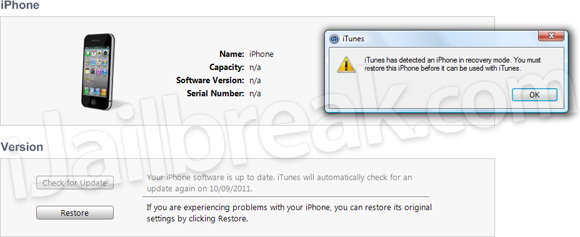
Step 3) – Now comes the hardest part; You must put your iPhone, iPod Touch or iPad into DFU mode. This is done by doing the following:If you enter DFU mode correctly iTunes will open telling you that that you must restore your iPhone, iPod Touch or iPad.
- Turn your iPhone, iPod Touch or iPad off.
- Hold the Power and Home Button for exactly 10 seconds.
- Once you Hold the Power and Home Button for 10 seconds release the Power Button and continue holding the Home Button for up to 30 seconds
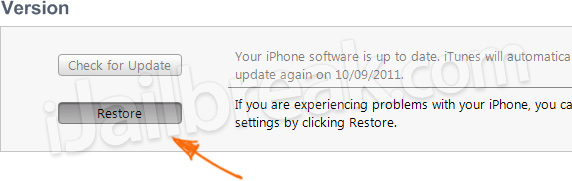
Step 4) - With iTunes open press Shift+Restore (Windows) or Option+Restore (Mac) and select the iOS 4.3.5 firmware file. Upon doing this your iPhone, iPod Touch or iPad will begin restoring itself to the iOS 4.3.5 firmware without any problems as the iOS 4.3.5 firmware is the latest official firmware.For more downgrading guides visit our How To Downgrade section. Let us know if you had any problems in the comments section below…
Subscribe to:
Posts (Atom)