Showing posts with label shsh. Show all posts
Showing posts with label shsh. Show all posts
Thursday, September 26, 2013
What is an SHSH Blob

It is something that is mentioned a lot on iDB throughout our jailbreaking tutorials and other jailbreak-related news. “Make sure you save your SHSH Blobs before you update,” is a pretty common saying around these parts. We’ve been asked several times lately what it is, so I figured I’d post it.
An SHSH Blob is basically what Apple uses to verify the version of iOS you are running. That’s why we tell you to save your SHSH Blobs before upgrading your firmware on your iDevice. Otherwise you might not be able to downgrade to a previous version in the event you needed to.
That is unless you managed to save your SHSH Blobs with a program like TinyUmbrella. Doing so will allow you to trick iTunes, into thinking you are running an older version.
“Cody, why can’t these SHSH Blobs just be downloaded like everything else?” Your SHSH Blob is device specific. It uses the ECID (Exclusive Chip ID) of your device, along with a challenge key, as part of the authentication process with Apple.
Because that key is static (doesn’t change), and you’re using the same ECID, it is possible for you to save your own SHSH blob for later use. It can then be used to downgrade your iDevice if you accidentally update your firmware and there’s no jailbreak available.
Now make sure you save you SHSH blobs. If you don’t know how, this tutorial will show you how to.
So is anyone as confused as I am? Just kidding. I tried to keep it pretty simple. Does anyone have anything to add or have questions? Sound off below!

Step 1: Download Firmware Umbrella from here.
Step 2: Launch Firmware Umbrella and plug your iPhone in.
Step 3: Click “Save My SHSH” and wait for Firmware Umbrella to do the job.
Done! A copy will be saved to your computer and it will also send a request to Cydia to save your SHSH on Saurik’s server.
TinyUmbrella Updated Again, Adds iOS 4.3 and iPad 2 Support

Now that the official version of iOS 4.3 has been released, @notcom has released an updated version of TinyUmbrella to support the new firmware.
In addition to iOS 4.3 support, the updated TinyUmbrella (version 4.30.00) also brings iPad 2 support for all models (WiFi, CDMA, and GSM), and a new tweak requested by the creator of Cydia, @Saurik. Notcom also mentions that users who do not update to the latest version of TinyUmbrella, may experience significant slowness when saving their SHSH blobs in the future…
As a reminder, to save your SHSH blobs, simply connect your iDevice via USB to your computer, launch TinyUmbrella, and click the “Save SHSH” button.TinyUmbrella now supports all three new models of iPad 2. I’ve also added a much-needed tweak per saurik’s request. If you don’t update to the latest version, you may experience /significant/ slowness when saving your SHSHs in the future. With this release, 4.3 is supported. I plan on making some changes to the UI to help out the poor saps stuck on vertical resolutions < 900. I’m also going to be removing the proxy section of the app and simply using the system proxy settings.
You can download the updated version from here.

Friday, September 20, 2013
Save iOS 4 3 5 SHSH iPhone iPad and iPod touch Blobs and Update iPhone 4 Baseband
TinyUmbrella for both Windows and Mac has been updated to version 5.00.07 to support save iOS 4.3.5 SHSH blobs for iPhone, iPod touch and iPad. This will help you to save SHSH certificates for iOS 4.3.5 as well as update iPhone 4 baseband. This is the first time updating iPhone 4 baseband functionality has been enabled in TinyUmbrella.The iPhone 4 baseband update option should only be used by those who know what they are doing. If you are on a software unlocked iPhone, you should definitely not play with this setting. Anyhow, before you do proceed, take notice of the following:You have to manually select update iPhone 4 baseband option whenever you start TinyUmbrella. It will never be on by default.
- First, the version you WANT to restore to and the version Apple is currently signing must BOTH have the same baseband. This is important or else the baseband update will not work and you will get a 10xx error and need to use fixrecovery. (Works for iPhone 4 - will not work for iPad 2)
- Second, you need to realize that checking the box WILL UPDATE YOUR BASEBAND.
As a reminder, to save your SHSH blobs, simply connect your iDevice via USB to your computer, launch TinyUmbrella, and click the “Save SHSH” button.
Download TinyUmbrella v5.00.07 for Windows
Download TinyUmbrella v5.00.07 for Mac

Thursday, September 19, 2013
How To Downgrade From iOS 5 Beta To iOS 4 3 5 Without Saved SHSH Blobs
With a lot of people running the iOS 5 beta series firmware, I am sure downgrading back down to the official iOS 4.3.5 firmware has crossed your mind. If this sounds like you, you will be glad to know that the process of downgrading back to the iOS 4.3.5 firmware is extremely simple. It does not involve changing your hosts file or using the application TinyUmbrella and it doesn’t require you to have saved SHSH blobs. This is because the iOS 4.3.5 firmware is the latest official firmware available.
Note: The iOS 4.3.5 firmware can be Jailbroken but it is a tethered Jailbreak. Follow our step-by-step guides in our
How To Jailbreak section.
You can follow the straightforward guide below for downgrading your iPhone, iPod Touch or iPad running the iOS 5 Beta 1, iOS 5 Beta 2, iOS 5 Beta 3, iOS 5 Beta 4, iOS 5 Beta 5, iOS 5 Beta 6 or iOS 5 Beta 7 firmware to the iOS 4.3.5 firmware.
Downgrading From iOS 5 Beta 1 – 7 To iOS 4.3.5
Step 1) - The first thing you are going to need to do is ensure you are running the latest development version of iTunes on your computer (which will be iTunes 10.5 beta 7). You can download iTunes 10.5 beta 7 for Windows and Mac OS X from the Apple Dev Center.
Step 2) – Once you have ensured you are running the latest version of iTunes on your computer you will need to make sure you have access to the iOS 4.3.5 firmware. If you need to download this firmware file you can go to the iJailbreak Downloads Section.
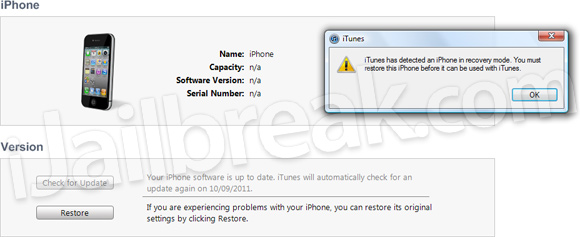
Step 3) – Now comes the hardest part; You must put your iPhone, iPod Touch or iPad into DFU mode. This is done by doing the following:If you enter DFU mode correctly iTunes will open telling you that that you must restore your iPhone, iPod Touch or iPad.
- Turn your iPhone, iPod Touch or iPad off.
- Hold the Power and Home Button for exactly 10 seconds.
- Once you Hold the Power and Home Button for 10 seconds release the Power Button and continue holding the Home Button for up to 30 seconds
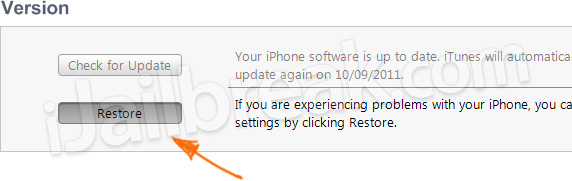
Step 4) - With iTunes open press Shift+Restore (Windows) or Option+Restore (Mac) and select the iOS 4.3.5 firmware file. Upon doing this your iPhone, iPod Touch or iPad will begin restoring itself to the iOS 4.3.5 firmware without any problems as the iOS 4.3.5 firmware is the latest official firmware.For more downgrading guides visit our How To Downgrade section. Let us know if you had any problems in the comments section below…
Subscribe to:
Posts (Atom)