Showing posts with label new. Show all posts
Showing posts with label new. Show all posts
Wednesday, March 19, 2014
Chinese New Year Interactive E Book for Smartboard
My students this year are absolutely LOVING non-fiction texts! It took them a while to become interested in them, but every since I started making these interactive e-books, they cant get enough! They have to play close attention to the text in order to be able to answer the questions, and they love to hear the sound effects when they get the question correct!
With the Chinese New Year (a.k.a. the Lunar New Year or Spring Festival) coming up this Friday, January 31, I figured Id give them a look and the history and traditions of the holiday. I learned so much while I was researching to write this book and I cant wait to share it with my students this week!

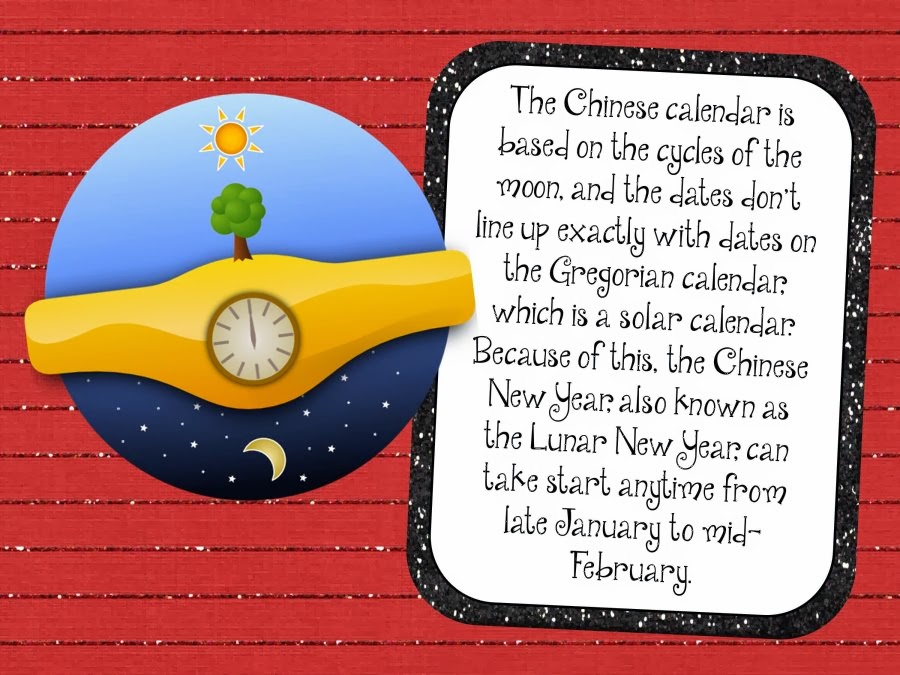


This Smart Notebook file is sure to get your students interested in the Lunar New Year! I hope this helps to inspire all of the students to learn more about other cultures!
Read more...
With the Chinese New Year (a.k.a. the Lunar New Year or Spring Festival) coming up this Friday, January 31, I figured Id give them a look and the history and traditions of the holiday. I learned so much while I was researching to write this book and I cant wait to share it with my students this week!
This Smart Notebook file is sure to get your students interested in the Lunar New Year! I hope this helps to inspire all of the students to learn more about other cultures!

Wednesday, February 26, 2014
Celebrate the New Year With This Sight Words Game!
Merry Christmas everyone! Ill keep this one short and sweet so that anyone who celebrate can go enjoy the day with your family!
Today is the 5th and final day of my 5 days of giveaways. Thanks to everyone for playing along the past five days! I loved reading all of your guesses for my favorite Christmas book, movie, song, and your guesses for where Im spending today to celebrate!
I thought that for the final giveaway Id share a flash freebie with you! I just love how these centers came out!
Click any of the pictures to head to TPT to grab this freebie for a limited time only!


Merry Christmas and Happy Holidays everyone!!!
Read more...
Today is the 5th and final day of my 5 days of giveaways. Thanks to everyone for playing along the past five days! I loved reading all of your guesses for my favorite Christmas book, movie, song, and your guesses for where Im spending today to celebrate!
I thought that for the final giveaway Id share a flash freebie with you! I just love how these centers came out!
Click any of the pictures to head to TPT to grab this freebie for a limited time only!
Merry Christmas and Happy Holidays everyone!!!
Friday, October 11, 2013
iOS 5 Beta 3 Whats New Change Log
The new Beta version of iOS5 has been recently released for Developers by Apple. The final version of iOS will be released with the launch of new iPhone5 that is expected in September. Now we are going to demonstrate a number of new features that are introduced in iOS 5.0 Beta 3 firmware released today that is only for developers.
- The new Beta version of firmware iOS5 is compatible with most of new iDevices like, iPhone 3GS and 4, iPod 3rd and 4th Gen and iPad 1st & 2nd Gen. these devices are now added to the list of 2nd generation Apple TV.
- The new version of IMesage Beta3 is only for those who are running iOS 5 Beta 2 or iOS 5 beta 3.
- There is a change like with the release of new version by Apple every time that you will new need to install iTunes 10.5 beta 3 to install firmware iOS5 Beta 3 to you iDevice.
- The syncing of iPhone having iOS5 beta 3 is only possible with iTunes 10.5 Beta3.
- There is a fix for Reminder App that had some bugs in using it.
- Bugs to be found in Settings, MMs and Images in iOS 5 Beta 2 are resolved
- It is easy to backup your data using iCloud.
- There is draw back that MMS cannot send videos of longer length.
- The editing function introduced in iOS5 that could remove red-eye deduction. The pictures edited with red-eye correction are synchronizing without changes applied.
- There is a problem of synchronization. The solution is that you should restart you iPhone and resync.
- The bug that did not allow the volume control to be used in videos is also fixed with the help of Cristian.
- The new firmware is built A5259f
- Fixed problems with video mirroring between 2 and Apple TV iPad
- The icon of GPS on the status bar during the usage of Location service was resolved, a bug with twitter.·
- The camera app was slow in older beta version that is now swift in opening and operations· Addition of a new screen about the information of usage of GPS by your iPhone.
- A change after a long time in ringtones, two new tones were added that have been been activated yet named as Tweet and Sherwood
- The performance of this beta version is much better than the previous beta version Beta2.
- The icon for Reminder app has been changed.
- New Menu settings "Location Settings". From here you can enable or disable some functions
- There is option to disable the voice roaming voice traffic to avoid the usage of the service by provider for some occasions.
- It is good that you can easily clear cache and history of Safari.
- Another change is that “iTunes Wi-Fi Sync” has replaced “Wi-Fi Sync Settings”
- No issue in using FaceTime
- WiFi to Sync screen is more clear.


Wednesday, October 9, 2013
New Netbook The Best At 2012
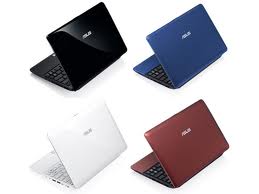
New Netbook The Best At 2012 - Talk of trouble netbook Toshiba, HP, Asus, Dell, Lenovo, Acer has released the latest 2012 version of the netbook products of each course with a distinct advantage. But this time I will only discuss one of the latest netbook product umpteenth 2012 which occupies the top position as the best netbook of 2012.
Good product review photos, specification, prices, advantages, and disadvantages of New Netbook The Best At 2012 this time is of the Asus Eee PC 1015PE. Lets see more details.
Laptop (Netbook) Being a pioneer Asus netbook in 2007, and since then the Eee PC series has grown very large. Eee PC Seashell 1015PE may only have a few additions to the basic concept of a netbook, but its features are unique, the value of a good point, and adequate storage capacity makes it easy to get a recommendation.
Chassis matt black plastic to create the impression of a very impressive high end for a very low price. Although the surface is easy to get dirty because of fingerprints left behind, but also easy to clean. A strong construction quality is also more than tough enough even though they always carry travel.
Largest size in this group, but the weight is not much different from 1.3 kg, so it is still quite thin and portable. With the power of a 6 cell battery, this netbook can be operated up to nearly eight hours. Capabilities are very good although still less than the Acer and Packard Bell in the group.
Asus is also one of the first companies to use isolation keyboard design style (or chiclet) on the netbook. These features are also well implemented on this netbook. The button is smaller than the Acer in the group, but the design is roomy and powerful board that is attached to ensure the activity remains comfortable typing.
Such as Acer, Asus touchpad is also large and wide, comparable to the 10.1 inch screenaspect ratio is too wide. The result, move the cursor on the layer becomes very easy. Single mouse button layered aluminium make this netbook look more cool andcomfortable to use.
Asus rather than the matt TFT screen TFT panel super-shiny. The results reflect bias eliminated completely, making it easier when the netbook is used to working outdoors. Matt TFT screen usually tend to make the image look alive, but we do not see that tradition on this netbook.
Excess
Netbook advantage lies in the extra features it has. In addition to the 250GB hard drive is spacious, Asus also equips with 500GB of online storage, so you can backup data securely over the internet wherever you are. As with other netbooks in the group, a webcam mounted on top of the screen. However, the unique camera is equipped with a slide cover to protect the camera when not in use and more respectful of privacy. Asus also has a typical install ExpressGate software. Finally, the battery lasts up to 13 hours so it is suitable for your choice to the usual wear outside the home.
Shortage
Screen size and resolution are mediocre.
Specification New Netbook The Best At 2012 Asus Eee PC 1015PE
Product Features
- Intel Atom N475 (1.83GHz)
- Intel GMA 3150 design, 1 SODIMM Position, 1GB DDR3 RAM, 2GB Max.
- 0.3MP Web camera , 500GB Free Web Storage space + 250GB SATA Hard Generate (5400RPM).
- 802.11 b/g/n; Wireless 3.0; 10.1-Inch 1024X600 WSVGA Flat Complete LED Display; Chiclet Keyboard
- Windows 7 Starter OS (32 bit); 6 mobile power supply for up to 13 Hours of Battery Life.
Processor, Memory, and Motherboard
- Hardware Platform: PC
- Processor: 1.83 GHz Intel Pentium M
- Number of Processors: 1
- RAM Type: SODIMM
- RAM: 1000 MB
Hard Drive
- Type: Serial ATA
- Size: 250 GB
Cases and Expandability
- Weight: 4.52 pounds
- Size (LWH): 9.96 inches, 2.64 inches, 12.09 inches
Photo New Netbook The Best At 2012 Asus Eee PC 1015PE
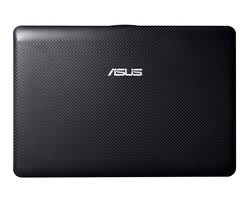

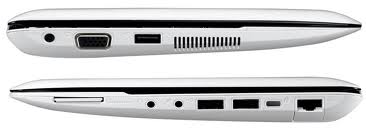
After seeing the full "New Netbook The Best At 2012 Asus Eee PC 1015PE" above if you want to have it? You can get this Netbook the Best 2012 here.
*May Be Useful*
Saturday, October 5, 2013
Downgrade your iPhone 4S iPad 2 or new iPad with RedSn0w 0 9 11b1
It’s finally here folks, the official downgrade tool for A5 devices!
Starting with redsn0w version 0.9.11b1, those with newer devices (iPad2, iPad3, and iPhone4S) can join the downgrade fun too!
In a radical departure from previous versions of redsn0w, it now directly supports restoring IPSWs to your device. The first use of this new feature implements a hack that allows A5 downgrades without a bootrom-level exploit.
Indeed, you can now downgrade your iPhone 4S, iPad 2, or new iPad (iPad 3) with the latest version of RedSn0w 0.9.11b1. Downgrading will allow you to perform an untethered jailbreak on your iPhone 4S, or iPad 2 running iOS 5.0.1 firmware.
Check out our tutorial for the step-by-step downgrade instructions inside…

Note: You must have your SHSH blobs for iOS 5.0.1 either stored locally by means of TinyUmbrella, etc., or Cydia must have your 5.0.1 blobs for this downgrade to work successfully.
Step 1: Download the latest version of RedSn0w 0.9.11b1 RedSn0w 0.9.11 beta 1: Mac • Windows
Step 2: Download the latest firmware (5.1.1) for your device from our downloads page, along with the 5.0.1 firmware.
Step 3: Place your device into DFU mode.
Step 4: Run RedSn0w 0.9.11b1, and make sure RedSn0w detects your device in DFU mode. Navigate to Extras > Even more > Restore and click IPSW under the IPSW section. RedSn0w will then ask you for your iOS 5.0.1 IPSW. Once you locate iOS 5.0.1, RedSn0w will ask your for the latest firmware (iOS 5.1.1).Step 5: Once both firmwares have been validated, it’s time to locate your saved SHSH blobs. If you’ve jailbroken your device before, you should have those available on Cydia, and therefore you can use the Remote option. If you’ve never jailbroken your device before, but you saved your SHSH blobs with a tool like TinyUmbrella, then choose Local and browse your computer for your blobs. We’d recommend clicking the Remote option first.Step 6: Once your blobs have been verified, there is nothing left for you to do, just let RedSn0w execute the full process. First RedSn0w will install a hacked version of the latest firmware (iOS 5.1.1), and then it will downgrade your firmware to iOS 5.0.1.
Step 7: Upon downgrading successfully you will be presented with a success message. Now all you have to do is setup your device, and verify that you are now on iOS 5.0.1 via Settings > General > About on your device.What’s Next?
Most people will want to jailbreak their newly downgraded device. If you’re using an A5 device like the iPad 2, or iPhone 4S, you can now jailbreak using Corona-A5. You can do this directly from RedSn0w. We will have a tutorial that shows you how to jailbreak your A5 device using RedSn0w in the near future. Until then, you can always use a tool like Absinthe Absinthe v0.4: Mac - Windows - Linux to jailbreak as well.
Were you able to downgrade successfully? Have any tips or tricks? Please share them below!
Important: If you rely on a software unlock or SIM interposer for your iPhone, beware! This method will update your baseband, and you could permanently lose your unlock.


UPDATE
5x redux
What’s old is new again!
Jailbreakers with devices that pre-date the iPad2 will always be able to downgrade (with SHSH blobs) to previous firmware versions due to geohot’s limera1n exploit, which allows us to bypass the restrictions that Apple places on restores. But until now, that ability has been limited to those older devices (if you have an older device and don’t know how to do that, check the popular tutorial sites or ask in the comments below).
Starting with redsn0w version 0.9.11b1, those with newer devices (iPad2, iPad3, and iPhone4S) can join the downgrade fun too! In a radical departure from previous versions of redsn0w, it now directly supports restoring IPSWs to your device. The first use of this new feature implements a hack that allows A5 downgrades without a bootrom-level exploit.
Some important points:
- The new feature is at Extras->Even More->Restore
- You cannot downgrade without the personalized SHSH blobs for your device at that lower firmware. You need to have fetched those blobs while the signing window was open, using either Cydia’s built-in TSS@Home feature, or with TinyUmbrella. The new Restore screen of redsn0w lets you choose either the remote blobs or local ones (for the earlier firmware). If you don’t know where TinyUmbrella put your blobs, TinyUmbrella has a button that will show you (copy them out of that folder and feed them to redsn0w).
- The A5 downgrade method actually updates to the latest firmware before downgrading to the earlier one. This process updates your baseband to whatever is newest. DO NOT USE THIS METHOD IF YOU RELY ON UNOFFICIAL UNLOCKS of your iPhone4S. Those who used the temporary SAM technique to unlock their iPhones to specific SIMs shouldn’t be affected by this baseband update.
- This method can be fixed by Apple with a firmware update. It’s a (pleasant) mystery why they haven’t fixed it yet, because reverse-engineering of the restore ramdisk indicates they do know about it. It’s possibly too niche to bother to fix right now.
- The least-tested devices with this method are the iPad2,3 and iPad3,2 (because we don’t have those models). If you do and you feel like experimenting, please let us know how it turns out in the comment section below!
- This update involves a bunch of new redsn0w code. We recommend sticking to the previous version 0.9.10b8b unless you’re specifically using this new feature, until all the bugs are worked out! (Note: If redsn0w gets stuck at the “Waiting for device” stage for more than 30 seconds, you’ve hit a pesky GUI bug…that will be fixed in an upcoming version!)
Of course all eyes are on @pod2g for his upcoming 5.1 untethered jailbreak. Watch his blog or twitter feed for the latest updates about that, but in the meantime if you accidentally updated your jailbroken A5 device to something later than 5.0.1, feel free to try this new A5 firmware downgrade feature of redsn0w!
Update #1: We accidentally left out one of the two flavors (“9A406”) of 5.0.1 for iPhone4S. It’ll be in the next update, but in the meantime check if Cydia or TU saved your blobs for the other 5.0.1 for iPhone4S (“9A405”). Version 0.9.11b2 adds support for that second “9A406” flavor of 5.0.1 for the iPhone4S.
Update #2: Version 0.9.11b3 should fix the spurious “Restore failed” messages people were sometimes getting, and it behaves better with nearby devices that have wifi syncing enabled!
Update #3: Version 0.9.11b4 completes the tethered JB support for 5.1.1 on A4 devices and earlier, including proper “Stitching” and “Custom” creation of NO_BB IPSWs.
Here are the redns0w download links:
- redsn0w 0.9.11b4 for OS X
- redsn0w 0.9.11b4 for Windows (be sure to run in Administrator mode)
Monday, September 30, 2013
iPhone 4S new users guide

Did you just get a new iPhone 4S? TiPb’s here to help you get set up, get up to speed, get apps and games, get accessories, and get going as fast as possible! Whether you upgraded from a previous iPhone, or from another smartphone, or it’s your very first smartphone, once you’re powered up we’ve got your back!
Note: If you haven’t bought your iPhone 4S yet, start here:
What are we talking about?
Before we start, if any of the terms below are unfamiliar you can find descriptions in our handy glossary:Get unpacked
If you’ve never had an iPhone before there are a few very useful accessories that come in the box, and a some buttons and ports on the iPhone 4 itself that you should become familiar with.Get set up
With iOS 5 and iCloud, you don’t even need a computer to set up your iPhone 4S. You can do it right on the device. Of course, iTunes is still an option if you prefer it, or if you have an older iPhone backup you want to restore from. We’ve got both covered for you.- How to setup your new iPhone 4S
- How to transfer your data over from your old iPhone to your new iPhone 4S
- How to transfer your data over from your old Android, BlackBerry, webOS or Windows Phone to your new iPhone
Get informed
Once you’re up and running, you’re ready to find out about all the amazing things your iPhone 4S can do. Here’s a great place to start!Get tips and tricks
Whether you’re a beginner, a techie, or a flat out ninja, there are always new tips and tricks coming out for iPhone, iPod touch, and iPad. Out daily tips cover everything from the most basic features to most advanced hacks, and our how-tos provide in-depth video and screenshot walkthroughs to help you get more out of your device. We’ve also got weekly podcasts, iPhone Live! and iPad Live! if you prefer audio, and a new video show, TiPb TV if you prefer to watch along!Get apps and games
There are hundreds of thousands of iPhone, iPod touch, and iPad apps in the iTunes App Store and more and more of them have now been updated to really take advantage of iOS 5. We’re also keeping track of our Top 5 and Top 10 apps in a bunch of great categories.Get accessories
Every Apple device looks the same and every Apple Store sells the same stuff. If you’re wanting something different — a splash of color, a bit of style, a new look, check out:Get talking, get help
If you just want to talk about your new iPhone 4, iPod touch, iPad, or Apple TV and all those apps and accessories, or if you need help getting started (or to trouble-shoot bugs), or advice and recommendations, we have the best community on the web waiting for you (yes, you!):Thursday, September 26, 2013
What do these new items in iTunes mean about your Match Library
If you don’t know by now, Apple has officially opened up their iTunes Match service to the public, bringing with it 256-kbps AAC DRM-free copies of your non-iTunes purchased music for $25 a year. To help familiarize users with the service, Apple has posted the following chart walking us through some new iTunes Match related iCloud icons you’ll start to notice in iTunes.
In the troubleshooting guide, we learn you can enable a column within iTunes to display the iTunes Match/iCloud status of any given song in your library. For example, whether it’s a “Matched” song or just “Uploaded”. To do this, click “View > View Options” or press “Command-J“, and click the “iCloud Status” checkbox (same place you also enable “iCloud download”).
A MacRumors forum poster also offers a few helpful hints, while noting iTunes Match keeps your meta-data (a nice touch if you tend to edit data associated with your songs), the post clears up some concerns regarding the intricacies of what happens with your local copies: If you need yet more clarification regarding DRM and which songs are eligible for iTunes Match, Apple breaks down the main things you need to know:As for iTunes Match supported file formats, Apple explains:
- iTunes Match is currently available only in the United States. Songs purchased outside of the United States iTunes Store containing DRM will not be matched or uploaded to iCloud.
- If a song contains DRM and is no longer available on the iTunes Store for purchase, the song is uploaded to iCloud and made available for download in protected DRM format. You will be required to authorize your computer or device for playback.
- A song will not be uploaded to iCloud if the song contains DRM, was purchased using a different Apple ID, and could not be matched.
- When you subscribe to or enable iTunes Match, your iOS device or computer will be associated to the Apple ID being used for iTunes Match.
- Songs encoded as MP3 or AAC that have been matched to the iTunes Store will be made available for download as 256 kbps as AAC from iCloud.
- Songs encoded as MP3 or AAC that cannot be matched to the iTunes Store will be uploaded as is. These songs will be made available for download in the same format it was uploaded in.
- Songs encoded as MP3 or AAC with a bitrate of 96 kbps or less will not be matched or uploaded to iCloud.
- Songs encoded as ALAC, WAV, or AIFF, will be transcoded in iTunes to 256 kbps AAC when uploaded to iCloud.
- Song files over 200 MB will not be uploaded to iCloud.


Sunday, September 15, 2013
New Samsung Galaxy S II Commercial Mocks Yet Again Apple Fans

Doesn’t matter that Samsung shops feature Apple’s App Store icons on decorative app wall, and the first Samsung Galaxy S 2 ad is a total Apple swagg rip-off. Doesn’t matter that about a week ago, Samsung has released a Samsung Galaxy S 2 ad that mocks Apple fans who wait in line for an iPhone. And it certainly doesn’t matter that the lock screen of the Galaxy S 2 displays an OS X Snow Leopard-ish wallpaper. None of these things matter. And you know why? Because stuff like this only makes the iPhone a star. It’s the biggest target out there and it’s like a trophy to everybody else who thinks that if they better than
Apple/iPhone the spotlight turns on them.
Watch the commercial after the break…
Friday, September 6, 2013
New Windows Utility Allows You to Use AirPlay With Windows Media Center

It’s becoming more and more apparent that AirPlay — Apple’s media streaming technology is here for the long haul.
We’ve seen numerous applications for both the iPhone, the Mac, and even Android devices that in some way or another, massage AirPlay’s functionality to meet their needs.
Throughout all of the fun, Windows has ultimately been left out; that is until now.
Developer Thomas Pleasance made sure of that fact with the recent release of his AirPlay enabled Windows Media Center Add-in…

The screenshots definitely show promise, all 12 of you still running Windows Media Center in your living room should be pleased.
I tried to get this working myself, but unfortunately AirPlay doesn’t want to play nice with my Windows 7 Virtual Machine. I’m sure it would work just dandy on an actual Windows installation.
Have you tried it yet? If not, head over to Thomas’ blog and download the necessary files to get started. You will also need Bonjour installed on your machine if you have not already done so.
Thomas Pleasance
My Own Little world
AirPlay for Windows Media Center – Beta 1
Posted: May 23, 2011 | Author: Thomas Pleasance | Filed under: AirPlay, iOS, Media Center | Tags: AirPlay, Media Center | 136 Comments » I’am please to release the first beta of AirPlay For Windows Media Player
Video

Images
Download AirPlay Client for Windows Media Center: http://goo.gl/OEzNm
Or from madeformediacenter.com
You also need Bonjour installed first: http://support.apple.com/kb/DL999
First Review: thedigitallifestyle.com
Subscribe to:
Posts (Atom)