Showing posts with label 4s. Show all posts
Showing posts with label 4s. Show all posts
Saturday, October 5, 2013
Downgrade your iPhone 4S iPad 2 or new iPad with RedSn0w 0 9 11b1
It’s finally here folks, the official downgrade tool for A5 devices!
Starting with redsn0w version 0.9.11b1, those with newer devices (iPad2, iPad3, and iPhone4S) can join the downgrade fun too!
In a radical departure from previous versions of redsn0w, it now directly supports restoring IPSWs to your device. The first use of this new feature implements a hack that allows A5 downgrades without a bootrom-level exploit.
Indeed, you can now downgrade your iPhone 4S, iPad 2, or new iPad (iPad 3) with the latest version of RedSn0w 0.9.11b1. Downgrading will allow you to perform an untethered jailbreak on your iPhone 4S, or iPad 2 running iOS 5.0.1 firmware.
Check out our tutorial for the step-by-step downgrade instructions inside…

Note: You must have your SHSH blobs for iOS 5.0.1 either stored locally by means of TinyUmbrella, etc., or Cydia must have your 5.0.1 blobs for this downgrade to work successfully.
Step 1: Download the latest version of RedSn0w 0.9.11b1 RedSn0w 0.9.11 beta 1: Mac • Windows
Step 2: Download the latest firmware (5.1.1) for your device from our downloads page, along with the 5.0.1 firmware.
Step 3: Place your device into DFU mode.
Step 4: Run RedSn0w 0.9.11b1, and make sure RedSn0w detects your device in DFU mode. Navigate to Extras > Even more > Restore and click IPSW under the IPSW section. RedSn0w will then ask you for your iOS 5.0.1 IPSW. Once you locate iOS 5.0.1, RedSn0w will ask your for the latest firmware (iOS 5.1.1).Step 5: Once both firmwares have been validated, it’s time to locate your saved SHSH blobs. If you’ve jailbroken your device before, you should have those available on Cydia, and therefore you can use the Remote option. If you’ve never jailbroken your device before, but you saved your SHSH blobs with a tool like TinyUmbrella, then choose Local and browse your computer for your blobs. We’d recommend clicking the Remote option first.Step 6: Once your blobs have been verified, there is nothing left for you to do, just let RedSn0w execute the full process. First RedSn0w will install a hacked version of the latest firmware (iOS 5.1.1), and then it will downgrade your firmware to iOS 5.0.1.
Step 7: Upon downgrading successfully you will be presented with a success message. Now all you have to do is setup your device, and verify that you are now on iOS 5.0.1 via Settings > General > About on your device.What’s Next?
Most people will want to jailbreak their newly downgraded device. If you’re using an A5 device like the iPad 2, or iPhone 4S, you can now jailbreak using Corona-A5. You can do this directly from RedSn0w. We will have a tutorial that shows you how to jailbreak your A5 device using RedSn0w in the near future. Until then, you can always use a tool like Absinthe Absinthe v0.4: Mac - Windows - Linux to jailbreak as well.
Were you able to downgrade successfully? Have any tips or tricks? Please share them below!
Important: If you rely on a software unlock or SIM interposer for your iPhone, beware! This method will update your baseband, and you could permanently lose your unlock.


UPDATE
5x redux
What’s old is new again!
Jailbreakers with devices that pre-date the iPad2 will always be able to downgrade (with SHSH blobs) to previous firmware versions due to geohot’s limera1n exploit, which allows us to bypass the restrictions that Apple places on restores. But until now, that ability has been limited to those older devices (if you have an older device and don’t know how to do that, check the popular tutorial sites or ask in the comments below).
Starting with redsn0w version 0.9.11b1, those with newer devices (iPad2, iPad3, and iPhone4S) can join the downgrade fun too! In a radical departure from previous versions of redsn0w, it now directly supports restoring IPSWs to your device. The first use of this new feature implements a hack that allows A5 downgrades without a bootrom-level exploit.
Some important points:
- The new feature is at Extras->Even More->Restore
- You cannot downgrade without the personalized SHSH blobs for your device at that lower firmware. You need to have fetched those blobs while the signing window was open, using either Cydia’s built-in TSS@Home feature, or with TinyUmbrella. The new Restore screen of redsn0w lets you choose either the remote blobs or local ones (for the earlier firmware). If you don’t know where TinyUmbrella put your blobs, TinyUmbrella has a button that will show you (copy them out of that folder and feed them to redsn0w).
- The A5 downgrade method actually updates to the latest firmware before downgrading to the earlier one. This process updates your baseband to whatever is newest. DO NOT USE THIS METHOD IF YOU RELY ON UNOFFICIAL UNLOCKS of your iPhone4S. Those who used the temporary SAM technique to unlock their iPhones to specific SIMs shouldn’t be affected by this baseband update.
- This method can be fixed by Apple with a firmware update. It’s a (pleasant) mystery why they haven’t fixed it yet, because reverse-engineering of the restore ramdisk indicates they do know about it. It’s possibly too niche to bother to fix right now.
- The least-tested devices with this method are the iPad2,3 and iPad3,2 (because we don’t have those models). If you do and you feel like experimenting, please let us know how it turns out in the comment section below!
- This update involves a bunch of new redsn0w code. We recommend sticking to the previous version 0.9.10b8b unless you’re specifically using this new feature, until all the bugs are worked out! (Note: If redsn0w gets stuck at the “Waiting for device” stage for more than 30 seconds, you’ve hit a pesky GUI bug…that will be fixed in an upcoming version!)
Of course all eyes are on @pod2g for his upcoming 5.1 untethered jailbreak. Watch his blog or twitter feed for the latest updates about that, but in the meantime if you accidentally updated your jailbroken A5 device to something later than 5.0.1, feel free to try this new A5 firmware downgrade feature of redsn0w!
Update #1: We accidentally left out one of the two flavors (“9A406”) of 5.0.1 for iPhone4S. It’ll be in the next update, but in the meantime check if Cydia or TU saved your blobs for the other 5.0.1 for iPhone4S (“9A405”). Version 0.9.11b2 adds support for that second “9A406” flavor of 5.0.1 for the iPhone4S.
Update #2: Version 0.9.11b3 should fix the spurious “Restore failed” messages people were sometimes getting, and it behaves better with nearby devices that have wifi syncing enabled!
Update #3: Version 0.9.11b4 completes the tethered JB support for 5.1.1 on A4 devices and earlier, including proper “Stitching” and “Custom” creation of NO_BB IPSWs.
Here are the redns0w download links:
- redsn0w 0.9.11b4 for OS X
- redsn0w 0.9.11b4 for Windows (be sure to run in Administrator mode)

Wednesday, October 2, 2013
Download iOS 5 1 Beta 2 Firmware IPSW iPhone 4S 4
Download iOS 5.1 firmware beta 2 for developers. Apple has just seeded iOS 5.1 beta 2 for developers with build number 9B5127c. The major update on iOS 5.1 beta 2 is the feature related to the management of photos in the Photo Stream.

Download iOS 5.1 Beta 2 for iPhone 4S, 4, 3GS, iPod Touch 4G, 3G, iPad 2, 1 (Developers Only)

Along with iOS 5.1 for iPhone 4S, 4, 3GS, iPod touch 4G, 3G, iPad 2 and iPad 1, Apple released new version of Xcode 4.3 and Apple TV.
NEW: Photos taken using iOS 5.1 can be deleted from Photo Stream on your device and will be removed automatically from Photo Stream on your other iOS 5.1 devices. Older photos can be manually deleted from your iOS 5.1 devices.
Download iOS 5.1 Beta 2 for iPhone 4S, 4, 3GS, iPod Touch 4G, 3G, iPad 2, 1 (Developers Only)
Tuesday, October 1, 2013
Enable Panorama Mode On A Non Jailbroken iPhone Including 4S Running iOS 5

The iOS community has been buzzing since yesterday, about the hidden panorama setting in iOS5 discovered by conradev. Today chpwn released a Cydia package that will do all the dirty work for you and enables this feature, but unfortunately you need a tethered or semitethered jailbreak for that. If you want the panorama feature but don’t want all the headaches of a tethered jailbreak ( or no jailbreak in case of the iPhone 4S ), here’s how to do it:
How to:
1. Download iBackupBot from the official website. ( Mac and Windows )
2. Plugin your iPhone and back it up via iTunes
3. Open iBackupBot and find the backup that you just made via iTunes. Select and load it.
4. Find Library/Preferences/com.apple.mobileslideshow.plist

5. Now you need to add a key to this .plist file. Open the file ( on mac, it just works *wink, wink* ) and near the bottom, add a key ( enableFirebreak ) and a string ( YES )

6. Save your modifications, and right from iBackupBot restore your iPhone with the modified iTunes backup

7. That’s it. Open your camera app, tap on options and there it is.
Monday, September 30, 2013
iPhone 4S new users guide

Did you just get a new iPhone 4S? TiPb’s here to help you get set up, get up to speed, get apps and games, get accessories, and get going as fast as possible! Whether you upgraded from a previous iPhone, or from another smartphone, or it’s your very first smartphone, once you’re powered up we’ve got your back!
Note: If you haven’t bought your iPhone 4S yet, start here:
What are we talking about?
Before we start, if any of the terms below are unfamiliar you can find descriptions in our handy glossary:Get unpacked
If you’ve never had an iPhone before there are a few very useful accessories that come in the box, and a some buttons and ports on the iPhone 4 itself that you should become familiar with.Get set up
With iOS 5 and iCloud, you don’t even need a computer to set up your iPhone 4S. You can do it right on the device. Of course, iTunes is still an option if you prefer it, or if you have an older iPhone backup you want to restore from. We’ve got both covered for you.- How to setup your new iPhone 4S
- How to transfer your data over from your old iPhone to your new iPhone 4S
- How to transfer your data over from your old Android, BlackBerry, webOS or Windows Phone to your new iPhone
Get informed
Once you’re up and running, you’re ready to find out about all the amazing things your iPhone 4S can do. Here’s a great place to start!Get tips and tricks
Whether you’re a beginner, a techie, or a flat out ninja, there are always new tips and tricks coming out for iPhone, iPod touch, and iPad. Out daily tips cover everything from the most basic features to most advanced hacks, and our how-tos provide in-depth video and screenshot walkthroughs to help you get more out of your device. We’ve also got weekly podcasts, iPhone Live! and iPad Live! if you prefer audio, and a new video show, TiPb TV if you prefer to watch along!Get apps and games
There are hundreds of thousands of iPhone, iPod touch, and iPad apps in the iTunes App Store and more and more of them have now been updated to really take advantage of iOS 5. We’re also keeping track of our Top 5 and Top 10 apps in a bunch of great categories.Get accessories
Every Apple device looks the same and every Apple Store sells the same stuff. If you’re wanting something different — a splash of color, a bit of style, a new look, check out:Get talking, get help
If you just want to talk about your new iPhone 4, iPod touch, iPad, or Apple TV and all those apps and accessories, or if you need help getting started (or to trouble-shoot bugs), or advice and recommendations, we have the best community on the web waiting for you (yes, you!):Phone 4S vs iPhone 4 Chart
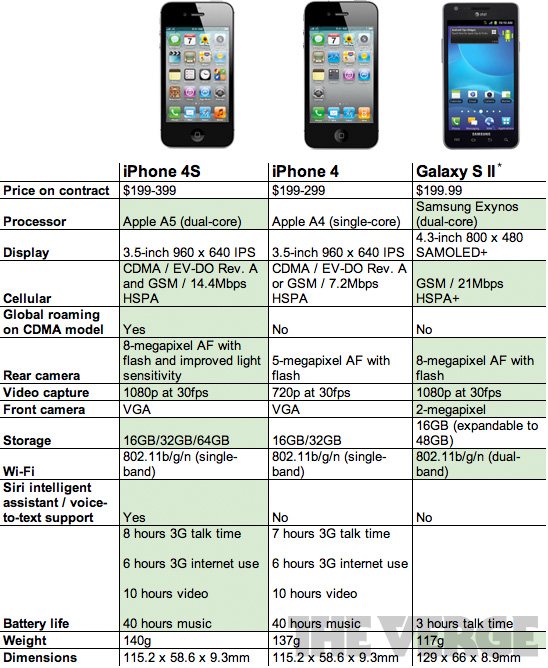
The Verge has published a nice chart comparing the iPhone 4S vs. iPhone 4 vs. Samsung Galaxy S II.
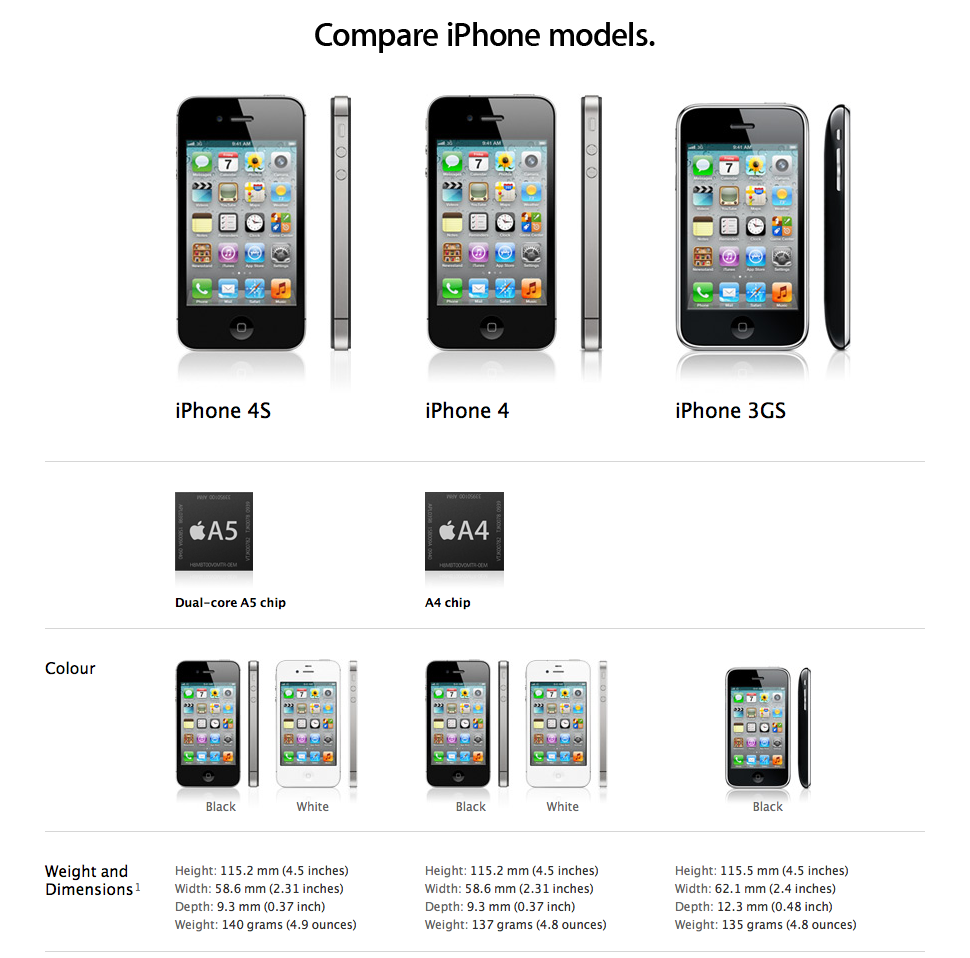
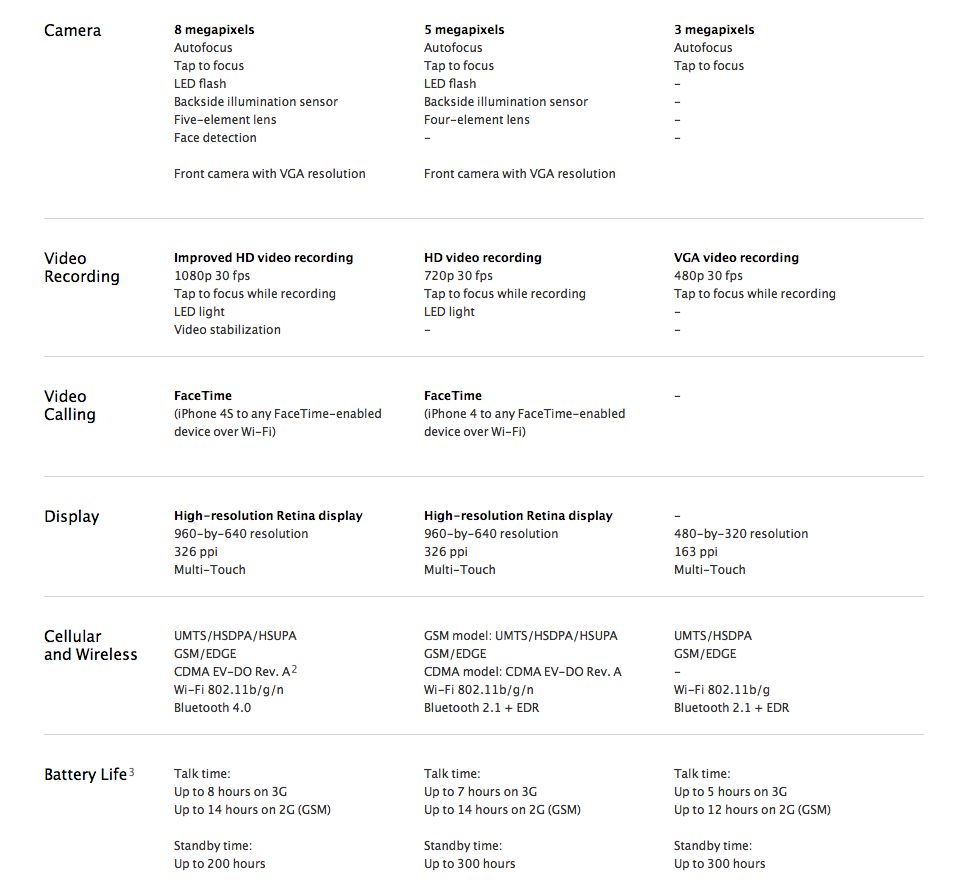
Apple also has their own chart comparing the devices...
Thursday, September 12, 2013
Spec Wars iPhone 4S vs Samsung Galaxy S II vs BlackBerry Bold 9900 vs HTC Titan vs Pre3

Now that Apple has officially announced the iPhone 4S and put its specs on the table, we can put those specs up against the other baddest phones on the planet — the current flagship devices for Android, BlackBerry, Windows Phone, and webOS.
Each, of course, has its own unique advantages:
- iPhone 4S is blazing fast with the elegant and powerful iOS 5 and the jaw-dropping Assistant artificial intelligence-meets voice control system.
- Samsung Galaxy S II has a huge, incredibly bright display, ultra-thin profile, and Google’s Android 2.3 Gingerbread with TouchWiz on top.
- BlackBerry Bold 9900 brings touchscreen and QWERTY keyboard together in a way unseen since the best days of the Treo and combines in all the killer communication power of the BlackBerry 7 platform.
- HTC Titan makes other big phones feel small, with a gigantic screen, the polish of Microsoft’s Metro UI, and the features of the newly releases Windows Phone 7.5 Mango update.
- Pre3 may never see the light of day, thanks to HP, but we include it here so a) we can look at the battle that might have been, and b) our webOS friends don’t kick us in the shins.
iphone_4s_competive_specs2_2

Saturday, September 7, 2013
Turn your iPhone 4 4S into the next gen iPhone with this 30 back plate mod kit
While we certainly cannot vouch for the quality of this “iPhone 5 conversion mod kit” for iPhone 4 and iPhone 4S, it appears to be a back-plate mod kit based on leaked next-generation iPhone designs. Available in both black and white, the kit is based on the next-gen metal iPhone backs that we first posted high-resolution photos of in May. The mod kit is currently shipping worldwide within seven days for $30. The sellers claim the kit uses “camera glass lens of same quality as original iPhone back panel,” while the back plate includes “glass-like acrylic” and aluminum.
The kit also comes with Phillips and Pentalobe screwdrivers. The iPhone 5 mod kit is available here, and a short promo video of the result is below. For comparison, images of the “real” thing are here.


Subscribe to:
Posts (Atom)