Showing posts with label unlock. Show all posts
Showing posts with label unlock. Show all posts
Monday, October 7, 2013
Unlock iPhone 4 On iOS 4 3 5 Using Pwnage Tool
iOS 4.3.5 was recently released by Apple to fix a security issue with certificate validation.Thankfully Redmondpie Team has cooked a custom PwnageTool bundle that will allow you to jailbreak iOS 4.3.5 and Preserve Baseband unlock. Heres what you will need:
- iOS 4.3.5 IPSW for iPhone 4 [Download]
- iTunes 10.4 [Download]
- PwnageTool 4.3.3 [Download]
- PwnageTool Bundle [Download]
- tethered-boot utility [Download]
Warning:
If your baseband is 4.10.1 Do not update to iOS 4.3.5 as there is no unlock for it now. Modify PwnageTool For Custom BundleStep 1: extract the custom bundle we mentioned above and drag it to your desktop.
Step 2: drag the PwnageTool app to the /Applications folder but do not launch it yet. Instead, right-click it and select Show Package Contents, in order to insert the bundle. For reference, check out the screenshot below. Step 3: you should now see a Finder window identical to the one below. Navigate over to Contents/Resources/FirmwareBundles/ and place the .bundle file you had selected earlier to this location, then close the window.
 Creating Custom 4.3.5 Firmware
Step 4: start up PwnageTool in Expert mode, as shown on the screenshot below. Select the device you’re using, then click on the blue arrow on the bottom-right corner of the window to proceed. Step 5: when requested, point PwnageTool to the iOS 4.3.5 IPSW file you downloaded earlier, as shown in the screenshot below.
 Step 6: on the next screen, you’ll be given the option to further customize the software you’re about to build. Feel free to toy around with these settings, but only if you know what you’re doing. If you’re not sure what to do, just click on "Build" as shown below. PwnageTool will then build a jailbroken firmware, a process that could take a few minutes, so kick back and have a soda.
 Step 7: when instructed, you need to put your phone into DFU mode. Just do as follows:
Hold down both the Power and Home buttons simultaneously for 10 seconds.
Release the Power button but keep holding the Home button for 10 more seconds.
If your screen is black, you’re in DFU mode. If an iTunes logo is displayed, you’re in Restore Mode: just try the steps above a few more times, sometimes it doesn’t go well on the first try. Nonetheless, a notification will be displayed if you’ve managed to enter this mode correctly. Restoring Custom 4.3.5 Firmware On iPhone
Step 8: once this process is done, you’re free to exit out of PwnageTool. Now launch iTunes and restore to the firmware file you’ve just created: select your device from the iTunes sidebar, and click Restore while holding down the Alt key on your keyboard. Select the firmware file you’ve just saved (make sure it’s the one created by PwnageTool, not the default firmware) and click Open. iTunes should now begin loading the jailbroken firmware to your device, avoid interacting it at this point. If everything goes as expecting, your device should be jailbroken at this point. Booting iPhone In Tethered Mode
Since this is a tethered jailbreak, whenever you boot up your device you’ll have to plug it into your computer and run a small utility known as tetheredboot. You’ll need to follow the following Step 11 and Step 12 whenever you start up your device!
Step 9: place tetheredboot (download link at the beginning of the article) in an accessible directory.
Step 10: change the extension of the custom IPSW file you’ve just created to .zip by renaming the file, then extract it much like a real ZIP file. Navigate to /Firmware/dfu/ and copy two files (kernelcache.release.n90 and iBSS.n90ap.RELEASE.dfu) from that directory to the folder you’ve pasted tetheredboot utility into, as shown below. Step 11: with your device plugged in but turned off, bring up the Mac OS X Terminal (by heading to Applications/Utilities/Terminal), type in the following commend, press enter and insert your password when requested:
sudo -s
Then type in the following:
/Users/TaimurAsad/Desktop/tetheredboot/tetheredboot
/Users/TaimurAsad/Desktop/tetheredboot/iBSS.n90ap.RELEASE.dfu
/Users/TaimurAsad/Desktop/tetheredboot/kernelcache.release.n90
if the commands above don’t work, try the following:
/Users/TaimurAsad/Desktop/tetheredboot/tetheredboot –i
/Users/TaimurAsad/Desktop/tetheredboot/iBSS.n90ap.RELEASE.dfu -k
/Users/TaimurAsad/Desktop/tetheredboot/kernelcache.release.n90
Important: Make sure you replace /Users/TaimurAsad/Desktop/tetheredboot/ with the directory where you have placed the tetheredboot utility. If you’re not comfortable typing in commands, you can simply drag the 3 files in your tetheredboot folder right into the terminal window after the original sudo -s command.
Step 12: after some code runs through the terminal, you’ll be asked to set your phone into DFU mode. Do so, as shown below:
Hold down both the Power and Home buttons simultaneously for 10 seconds.
Release the Power button but keep holding the Home button for 10 more seconds.
If your screen is black, you’re in DFU mode. If an iTunes logo is displayed, you’re in Restore Mode: just try the steps above a few more times, sometimes it doesn’t go well on the first try.
If you wait a few seconds, you should see “Exiting libpois0n” on the terminal. Your device is now in a jailbroken state until next time you power off.


Sunday, October 6, 2013
UNLOCK iOS 5 with GEVEY SIM
Yesterday at WWDC 2011, Apple announced (amongst many other things) iOS 5, the upcoming version of iOS that’s to be released with the iPhone 5 later this year. iOS Developers and certain tech bloggers have been given access to this build, and we’re sure one of the biggest question the hordes of iPhone users around the world are asking is: Will my Gevey-3G unlock SIM interposer work???
With iOS 5 beta (build 9A5220p), the modem firmware has been upgraded to 04.11.04 and cannot be downgraded to earlier versions, meaning the only possible SIM unlock would be a turbo sim/interposer, hence the worried and nervous questions going around the online iPhone community.
And the answer? A relieving yes. At least for now, for iOS 5 beta 1, it does. The process remains unchanged — just insert the interposer, restart your device, accept the welcome message, dial 112, and toggle the Airplane Mode feature a few times. The Gevey SIM will still work to unlock iOS 5.0 beta.
However, in order to install iOS 5 you’ll need (in addition to access to the iOS 5 9A5220p IPSW firmware upgrade and the iTunes 10.5b27 build) access to a real SIM from whatever manufacturer your phone originally shipped with (probably AT&T) for the activation to go through. And you’ll of course need to have your phone registered as a developer device on the iOS Developer Center website.
Enjoy your interposer-unlocked iOS 5 and let us know how it goes!

Gevey SIM Will Unlock iPhone 4 on iOS 5

Following the news that RedSn0w will jailbreak iOS 5, an unlock solution for the iPhone 4 on iOS 5 has also been uncovered. The Gevey SIM is a TurboSIM-like piggy back SIM card that will unlock iPhone 4 basebands.
On iOS 5, it appears that the Gevey SIM will still unlock the
iPhone 4. Be warned: the Gevey SIM is technically illegal, so we do not recommend this method for unlocking the iPhone 4 on iOS 5.
A Redmond Pie reader sent in some screenshots of his iPhone 4 unlocked with the Gevey SIM,

We have no confirmation of Gevey SIM baseband incompatibility on the iPhone 4 with iOS 5. If you’d like to learn a little more about the Gevey SIM, check this out.
Who’s excited about unlocking the iPhone on iOS 5?
Tuesday, October 1, 2013
Unlock iPhone 4 3GS using Permanently IMEI unlock Method
Good news for iPhone 4, and iPhone 3GS users. Now you can permanently unlock your iPhone 4, and iPhone 3GS by using IMEI unlock method. This is a new remote unlocking method which will allow you to unlock your iPhone 4, and iPhone 3GS on any baseband using the IMEI of the iPhone. For this you don’t need to jailbreak your iPhone. As we know Ultrasn0w can not unlock iPhone 3G, 3GS on baseband 05.14.xx, 05.15.xx and 05.16.xx but using IMEI unlock method you can unlock your iPhone 3G, 3GS on baseband 05.14.xx, 05.15.xx and 05.16.xx.
Now We have Four Methods To Unlock Our iPhone
Method 1: Ultrasn0w
This is the most public method available for iPhone unlocking. As you know Ultrasnow working is based on iPhone basebands (01.59.00 / 04.26.08 / 05.11.07 / 05.12.01 / 05.13.04 / 06.15.00) these basebands can be unlocked using Ultrasnow. It is to remind you that a jailbroken iPhone is required to install Ultrasnow on your device.
Unfortunately Ultrasn0w doesn’t support the latest basebands (02.10.04 / 03.10.01 / 04.10.01 / 05.14.02 / 05.15.04) and we still waiting for the lastest Ultrasnow by the Dev-team that will unlock all above mentioned basebands.
Method 2: Gevey SIM
In this method you have to use a special SIM and call at 112 emergency number to get your phone activated, which might be illegal in some countries. Moreover it does not support all firmwares and basebands So it only unlock iPhone 4 running iOS 4.1 and 4.2.1 basebands 2.10.04 and 3.10.01. You will found troubles on following some steps on every reboot to get the signals of unsupported carrier. In contrast to Ultrasnow, you also have to pay few bucks to get it.
Method 3: Rebel Micro Sim Card.
Rebel Micro Sim Card may be similar to Gevey SIM, Rebel Sim can unlocks iPhone 4 basebands 1.59.00 / 03:10.01 / 02.10.04 / 04.10.01 running iOS 4, iOS 4.1, 4.2, 4.2.1, 4.3 & 4.3.1. The Rebel Micro Sim developer may be trying to solve the Gevey sim Problems
Rebel Micro Is like an Untethered Jailbreak means if you reboot your iPhone so you don’t have to do the procedure again and again. The signals will come up automatically.
It costs GBP 40 for Rebel Pro and GBP 30 for Rebel Lite. We dont know more about the that sim or the sim problems cause it sill new sim
Method 4: IMEI unlock@MuscleNerd the well -established online unlockers for other cellphone brands are suddenly today selling iphone unlocks..obviously something opened up@ Chronic iPhone is being repaired now so can’t test, but I know @CutYourSim is legit thru past dealings. I’m positive his unlock offerings are legit.Notes: that IMEI unlock method is an official iPhone unlock so it does not affect your warranty status.
price of IMEI unlock method: is almost thrice as compared to GEVEY SIM ranging between $150 to $200 USD.
If you don’t want to pay money for unlock then you can wait for the free Ultrasn0w unlock.


Sunday, September 29, 2013
How to Unlock iPhone 4 3GS on iOS 4 3 with Ultrasn0w Sn0wbreeze 2 3b4
As iH8sn0w promised, he has just released Sn0wbreeze 2.3b4 which included ultrasn0w unlock fix for iPhone 4 and 3GS running the old basebands only on iOS 4.3. Lets check out the compatible & incompatible devices after the jump.

Which devices can be unlocked with Sn0wbreeze 2.3b4 ?
Incompatible basebands with Sn0wbreeze 2.3b4
For iPhone 3GS only (how to update to 6.15.00 baseband): before you will be able to unlock you device on iOS 4.3 you have to update your iPhone 3GS to 6.15.00 baseband then jailbreak it on iOS 4.1 or 4.2.1, you can follow our guide posted here (Redsn0w) or posted here (PwnageTool).
Note: if you have already 6.15.00 baseband on your iPhone 3GS then bypass the above step.
Step 1: Now you have to jailbreak your iPhone 4, 3GS running iOS 4.3 using Sn0wbreeze 2.3b4 (Download link at the End), you can follow the video guide posted in forum.

Step 2: After you have finished your jailbreak, you can now unlock you iPhone 4, 3GS with Ultrasn0w 1.2 from Cydia. Follow the steps below:


 Step 3: Now simply restart your iPhone, congratulations, now you have a fully unlocked iPhone 4 or 3GS, running iOS 4.3 !
Download Sn0wbreeze 2.3b4
Download iOS 4.3 for iPhone 4, 3GS
Read more...
Which devices can be unlocked with Sn0wbreeze 2.3b4 ?
- iPhone 4 running 1.59.00 baseband ONLY.
- iPhone 3GS running 04.26.08, 05.11.07, 05.12.01, 05.13.04 and 06.15.00 basebands.
Incompatible basebands with Sn0wbreeze 2.3b4
- iPhone 4 running 02.10.04, 03.10.01 and 04.10.01 basebands.
- iPhone 3GS running 05.14.02 and 05.15.04 basebands (you can upgrade to iPad baseband 6.15.00 but this may cause you to lose your GPS, otherwise you have to wait for dev-team unlock of Gevey SIM unlock)
For iPhone 3GS only (how to update to 6.15.00 baseband): before you will be able to unlock you device on iOS 4.3 you have to update your iPhone 3GS to 6.15.00 baseband then jailbreak it on iOS 4.1 or 4.2.1, you can follow our guide posted here (Redsn0w) or posted here (PwnageTool).
Note: if you have already 6.15.00 baseband on your iPhone 3GS then bypass the above step.
Step 1: Now you have to jailbreak your iPhone 4, 3GS running iOS 4.3 using Sn0wbreeze 2.3b4 (Download link at the End), you can follow the video guide posted in forum.
Step 2: After you have finished your jailbreak, you can now unlock you iPhone 4, 3GS with Ultrasn0w 1.2 from Cydia. Follow the steps below:
- Press to launch Cydia Installer from your SpringBoard.
- Press to select the Manage tab at the bottom of the screen.
- Press to select the Sources button

- Now touch on Edit and then on Add. You will be prompted to enter the URL of the source. Type http://repo666.ultrasn0w.com and touch on Add Source to add this repository.

- Once the source has been added press the large Return to Cydia button then select the Done button at the top right of the screen.
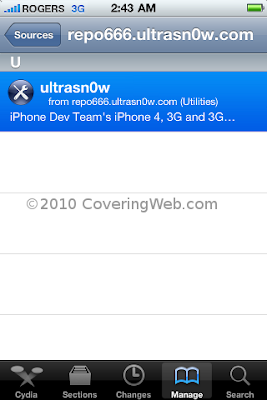
- Now select repo666.ultrasn0w.com from the sources list and at last select ultrasn0w from the list of packages as shown below then install this application.


Download Sn0wbreeze 2.3b4
Download iOS 4.3 for iPhone 4, 3GS
Tuesday, September 24, 2013
BlackBerry LG and Huawei Free Unlock Codes
BlackBerry Friday, Free Unlock Codes
Every Friday the 1st 10 imeis with MEP posted will get free unlock code.
Only one request per Associate. All other request after the limit is reached will be deleted.
Request outside this thread will be deleted.
This thread will be closed Saturday thru Thursday. So if you want free codes see you Friday.
To enter your code and to find the MEP see Enter Unlock Code on BlackBerry. http://www.guarforum.net/gsmreport/showthread.php?p=166526#post166526
LG Saturday Free Unlock Code
Starting Oct. Saturday 29, 2011
Every Saturday the 1st 10 imeis posted will get free unlock code.
Only one request per Associate. All other request after the limit is reached will be deleted.
Request outside this thread will be deleted.
This thread will be closed Sunday thru Friday. So if you want free codes see you Saturday.
To enter your code see LG codes entry instruction.
http://www.guarforum.net/gsmreport/showthread.php?p=166528#post166528
BR
ednacell
Free Huawei codes
Supported models : Huawei G6620,G6608,G20,Panama and similarpost Imei+Model.
This feature will be released soon with more Hot and exclusive Solutions, and we decide to give some Free codes
http://www.guarforum.net/gsmreport/showthread.php?t=136108
Monday, September 23, 2013
How To Unlock iPhone 4 On OFFICIAL iOS 5 0 5 0 1 By Preserving Baseband Video

Friday, September 20, 2013
Unlock Root v2 3 1 Updated
UnlockRoot is an easy one click Root/Unroot for most android devices starting from Android 2.1 till 4.0

Version:v2.3.1
Size:9MB
Date:04/01/2012
OS: WinXP/Vista/WIN7

This tool only grant root accsess and does not unlock simlock
 |
Size:9MB
Date:04/01/2012
OS: WinXP/Vista/WIN7
- Introduction
- Unlock Root Tools is a android root tool.Support the Android 2.1,2.2 and 2.3,Easy way to get root access Permissions!
| Working on the following devices: | |||
| HTC Sensation | Galaxy Nexus (i9250) | LG Optimus 3D (P920) | |
| HTC Wildfire S | Galaxy Note (I9220) | LG Optimus 2x | |
| HTC Desire S | Galaxy S II (I9100) | LG Optimus LET | |
| HTC Incredible S | Galaxy S (I9000) | LG Optimus Black | |
This tool only grant root accsess and does not unlock simlock
Supported OS: WinXP/Vista/WIN7
How to Root Your Phone/Tablet :
- Your device must be in USB Debugging mode. To turn it on, go to Settings > Applications > Development and check the box.
- Connect your device to your PC, Run UnlockRoot.exe,
- Click “Unlock Root”, Enjoy!
Updates History :
v2.3.1 updates:
- -- Add Japanese and Korea.
- -- Fixed some error.
v2.3.0 updates:
- -- Support ICS deivec root (Galaxy Nexus, Transformer Prime, Motorola RAZR, Acer A200)
v2.2.2 updates:
- -- Support Kindel Fire 6.2.2
v2.2.1 updates:
-- Check device pre root state.
v2.2 updates:
- -- Support Kindel Fire 6.2.1 and lower.
- -- Support more pre-root devices.
v2.1 updates:
- -- Request administrator privileges
v2.0 updates:
- -- New interface, more beautiful.
- -- Support multi-language.
- -- Updated root method, Support more devices.
- -- Support ROM version before Android 2.1.
- -- Superuser.apk Update to ver.3.0.7.
Enable USB Debugging On Your Android Device
Step 1
Launch the Settings app on your phone. This can be found in your App Drawer, or by Pressing the menu button on the outside of your device.
Step 2
Tap Applications.
Step 3
Tap Development.
Step 4
Check the box for USB debugging.*
*You can also Enable, Stay Awake and Allow mock locations to make things easier when you are running tests.
Done!
Your phone should now be in Debug Mode, if you go into the notification bar you’ll find an Ongoing alert stating USB debugging connected. Note that even while USB debug mode is enabled you can still Mount your Android phone to your computer to transfer files without causing any problems!


Thursday, September 19, 2013
How to Unlock an iPhone from T Mobile and Vodafone Germany For Free
Requirements:
Every iPhone that is older than 2 years.
iPhone 4, 3GS, and 3G IMEI number
How to proceed:
Unlock an iPhone Out of Contract with T-Mobile and Vodafone
Locate the iPhone IMEI number and make a note of it:
Tap Settings then tap General
Tap “About” and scroll down to find “IMEI”
Every iPhone that is older than 2 years.
iPhone 4, 3GS, and 3G IMEI number
How to proceed:
Unlock an iPhone Out of Contract with T-Mobile and Vodafone
Locate the iPhone IMEI number and make a note of it:
Tap Settings then tap General
Tap “About” and scroll down to find “IMEI”
Open this webpage https://t-mobile-simlockportal.arvat...m.com/PUBSILO/ from your browser for T-Mobile and this page for Vodafone: Vodafone CallYa-Handy entsperren: So wirds gemacht
Request your iPhone to be unlocked, provide the IMEI number of the device on the form and click on "Daten pruefen" on T-Mobile web or "Absenden" in Vodafone page and then fill some name or surname (just write anything) on T-Mobile webpage and some numbers as phone numbers and in 5 minutes your iPhone becomes factory unlocked.
T-Mobile will initiate a request to unlock the iPhone and then you have to restore the iPhone through iTunes to complete the device unlock. With the device unlocked, a micro-SIM from all other networks will now work in the iPhone.
Regards,
byteforce
Tuesday, September 17, 2013
Unlock iPhone UltraSn0w Fixer for 5 1 1
Step 1: The first thing you will need to do is Jailbreak your iPhone on the iOS 5.1.1 firmware by visiting iJailbreak’s How To Jailbreak Section.
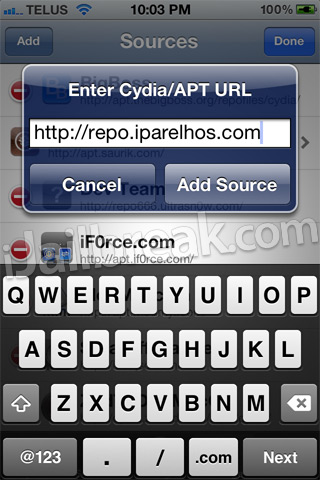
Step 2: Now you will need to launch Cydia so we can add the 3rd party repository UltraSn0w Fixer for 5.1.1 is hosted in. When Cydia is up and running go into the Manage tab, Sources section, tap the edit button and then the add button and add the following source:
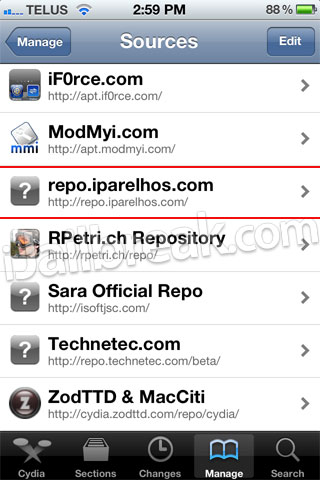
Step 3: With the source successfully added you will need to simply go into the iParelHos repo section.
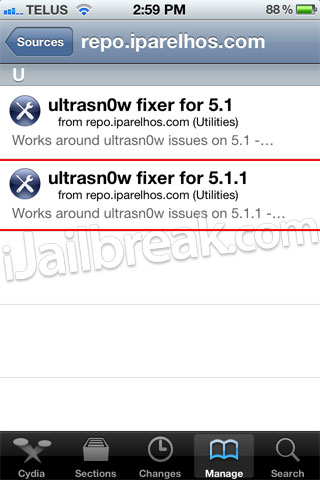
Once you see UltraSn0w Fixer for 5.1.1 simply install it to your iPhone.
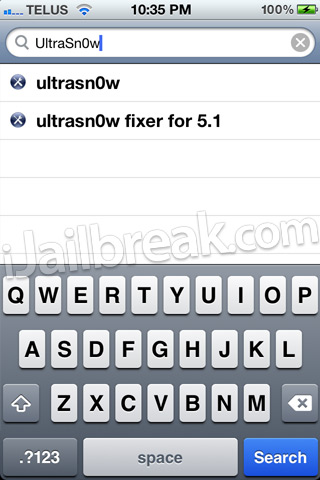
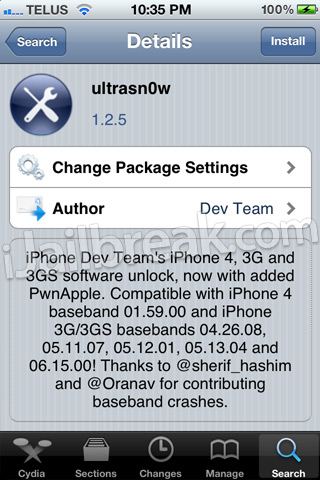
Step 4: When UltraSn0w Fixer has been installed simply go into Cydia’s Search tab and search for UltraSn0w.
After you have searched for it and see it, install it to your iPhone also and reboot.
Congratulations! You have just unlocked your iPhone 4 or iPhone 3GS running the iOS 5.1.1 firmware with UltraSn0w Fixer for 5.1.1. If you are still having troubles make sure you installed UltraSn0w Fixer for 5.1.1 before UltraSn0w. For those that did it in the reverse order you will need to uninstall both packages, reboot your iPhone and follow this how to guide once again. Please leave any further questions or thoughts in the comments section below…
http://www.guarforum.net/gsmreport/s...d.php?t=139777
Saturday, September 14, 2013
Ultrasn0w Fixer for 6 0 to unlock iPhone 4 3GS Old Basebands

This is not the official ultrasn0w tool that the iPhone Dev Team created. It’s a package that works with the official tool for supported basebands, those that can be unlocked by the official tool itself. This tool can be used until the official ultrasn0w is updated to unlock iOS 6.
iOS 6 Basebands compatible with ultrasn0w fixer 6.0
Ultrasn0w supports only older basebands, if you want to preserve your iOS 6 baseband you need to use custom firmware with Redsn0w 0.9.15b1 -- read more here.
- Baseband 01.59.00 (iPhone 4)
- Baseband 04.26.08 (iPhone 3GS)
- Baseband 05.11.07 (iPhone 3GS)
- Baseband 05.13.01 (iPhone 3GS)
- Baseband 05.12.01 (iPhone 3GS)
Unlock iOS 6 with ultrasn0w fixer – Guide

Step 4: Tap on the source that you entered in step 3.
Step 5: A package called ultrasn0w fixer for 6.0 will be presented to you. Tap on it to start installation.

Step 6: Download the official ultrasn0w and that’s it.
Congrats! Ultrasn0w fixer will now unlock your iPhone 3GS / iPhone 4 on iOS 6. This will do until the official ultrasn0w is updated. Do keep in mind the ultrasn0w fixer needs to be downloaded before the official tool itself.
Devices compatible with iOS 6 Ultrasn0w fixer
- iPhone 4
- iPhone 3GS
Thursday, September 12, 2013
iPhone 4 NCK unlock 2 10 04 3 10 01 progress Update
It looks like the iPhone Dev-Team successfully dumped the seczone to do the brute force NCK cracking offline. It also looks like they were able to capture the official NCK key from their carrier which they needed to “decode” the encryption algorithms that are used to generate the NCK key. That way, in combination with the NORID and CHIPID (and likely some additional information from the baseband), they will be able to generate the the NCK for every unique device out there.

Now what? Should I sell my locked iPhone 4?
I’d wait for more information on this “NCK-unlock”. Right now it’s pretty vague what timeframe we’re talking about. If the Dev-Team can pull this method off, it’d be very promising for those waiting for an unlock. If this method turns out to be not doable, I’d consider selling your iPhone 4 and save up for a factory unlocked iPhone 5.
Do you think there is ever going to be an unlock?
Of course. But that’s unlikely to be any time soon (with soon being <1 month).
If the NCK method fails, how long do you think it will take for the Dev-Team to unlock the iPhone 4 softwarematically?
No ETA at all. Could be a few weeks, but it could easily be a few months as well.
Read more...

deviceKey = SHA1_hash(norID+chipID)Right now they are brute force cracking the encryption, which is going to take a few days (if not weeks). If they succeed, progress may be made fast. In the meanwhile they are working on a software unlock. Please note that both are not said to success.
nckKey = custom_hash(norID, chipID, SHA1_hash(NCK), deviceKey)
(the nckKey is the key that eventually gives the seczone (and so the baseband) the unlocked state).
Now what? Should I sell my locked iPhone 4?
I’d wait for more information on this “NCK-unlock”. Right now it’s pretty vague what timeframe we’re talking about. If the Dev-Team can pull this method off, it’d be very promising for those waiting for an unlock. If this method turns out to be not doable, I’d consider selling your iPhone 4 and save up for a factory unlocked iPhone 5.
Do you think there is ever going to be an unlock?
Of course. But that’s unlikely to be any time soon (with soon being <1 month).
If the NCK method fails, how long do you think it will take for the Dev-Team to unlock the iPhone 4 softwarematically?
No ETA at all. Could be a few weeks, but it could easily be a few months as well.
Friday, September 6, 2013
Unlock 4 3 5 iPhone 4 with Original Gevey Sim Ultra
Unlock 4.3.5 iPhone 4 with Gevey SIM Ultra is possible. As we reported you that Apple has released iOS 4.3.5 for iDevices yesterday to fix some security issues found in latest firmwares. For who dont know that Gevey Sim ultra can unlock 4.3.5 iPhone 4 without calling 112.
One of our readers has successfully unlock 4.3.5 iPhone 4 with Gevey SIM Ultra. For ultrasn0w unlockers, iPhone dev-team has not updated ultrasn0w to unlock 4.3.5 iPhone 4, so we advice who rely on ultrasn0w unlock to stay away from iOS 4.3.5 update.
If you want to buy Gevey SIM, we recommend to buy it from GEVEY Ultra unlock iPhone 4 iOS 4.0, 4.1, 4.2.1, 4.3.1, 4.3, 4.3.2, 4.3.3 baseband 1.59, 2.10, 3.10.1, 4.10.1
GEVEY Ultra
Provides two different ways to unlock your iPhone 4.
Manual Process
•Recommended for basic users
•Works on iOS 4.1, 4.2, 4.2.1, 4.3, 4.3.1, 4.3.2, 4.3.3, 4.3.4, and 4.3.5
•Setup time will take less than 3 minutes
•Applenberry staff provides full technical support

Subscribe to:
Posts (Atom)